
If you searched for the “Galileo AI UI design tool” expecting to sign up today, you’re about to hit a dead end and you’re not alone. Search volume for the term has stayed high for over a year after the product quietly stopped existing under that name. Galileo AI was a genuinely clever text-to-UI generator: describe a screen in plain English, get back an editable, Figma-ready interface in seconds. Then, in May 2025, Google acquired the company and folded its technology into a new product called Stitch. That single event announced directly by co-founder Arnaud Benard, who confirmed both the acquisition and the simultaneous launch of a Gemini-powered successor in the founder’s own acquisition announcement is the reason so many “Galileo AI” reviews you’ll find today are already out of date. This guide covers what Galileo AI actually was, what changed, and how to get the same job done in 2026.
What Was Galileo AI?
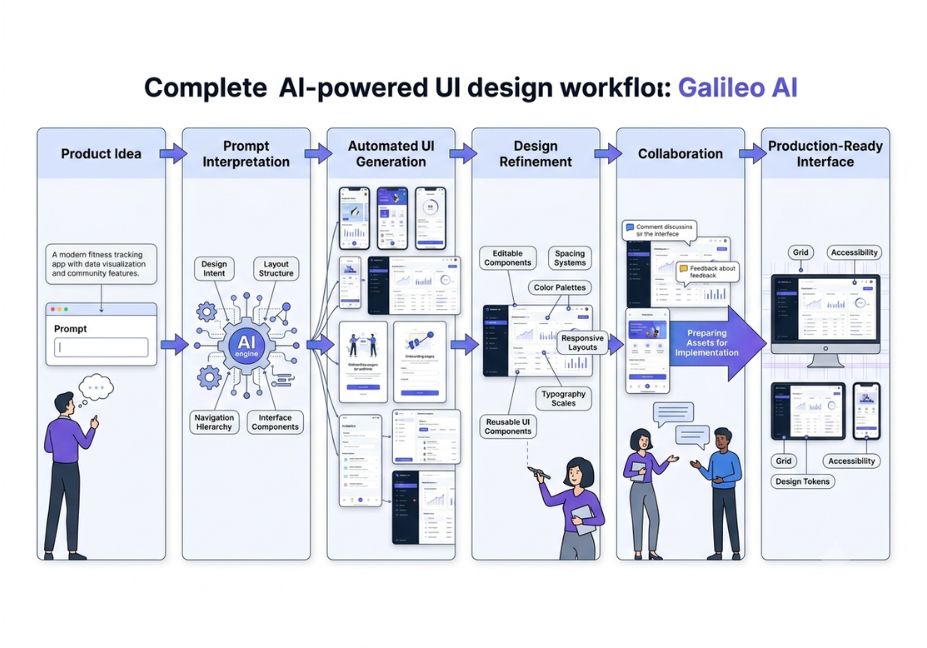
Galileo AI, founded in 2022 by Helen Zhou and Arnaud Benard, was a prompt-to-design tool built specifically for product and design teams. You typed a description “a minimalist onboarding flow for a fitness app” and the model returned a complete, styled interface: buttons, cards, typography, color palette, and even placeholder copy. Designs exported directly to Figma as editable layers, which made it genuinely useful for developer handoff, not just inspiration boards. A companion image-to-UI feature let users upload sketches or screenshots and get a polished, high-fidelity version back. Per Google’s own announcement of the Stitch platform, this prompt-engineering and output-parsing layer the part that reliably turns loose language into a coherent component tree is exactly what Google decided was worth buying rather than rebuilding from scratch.
Is Galileo AI Still Available? (Short Answer: No)
No Galileo AI is no longer available as an independent, sign-up-able product. Google acquired it in May 2025, and the original Galileo domain now redirects to Stitch. Existing users were given a 30-day window to migrate saved projects before legacy access closed. If you’re evaluating “Galileo AI” today, you’re really evaluating Stitch, its Gemini-powered successor.
Technical Disclaimer: Product names, pricing tiers, and generation limits for Google Labs experiments change frequently. Details below reflect publicly reported information as of mid-2026 always confirm current terms on Google’s own product page before committing a team workflow to it.
How Does the Galileo AI Engine Work Today (Inside Stitch)?
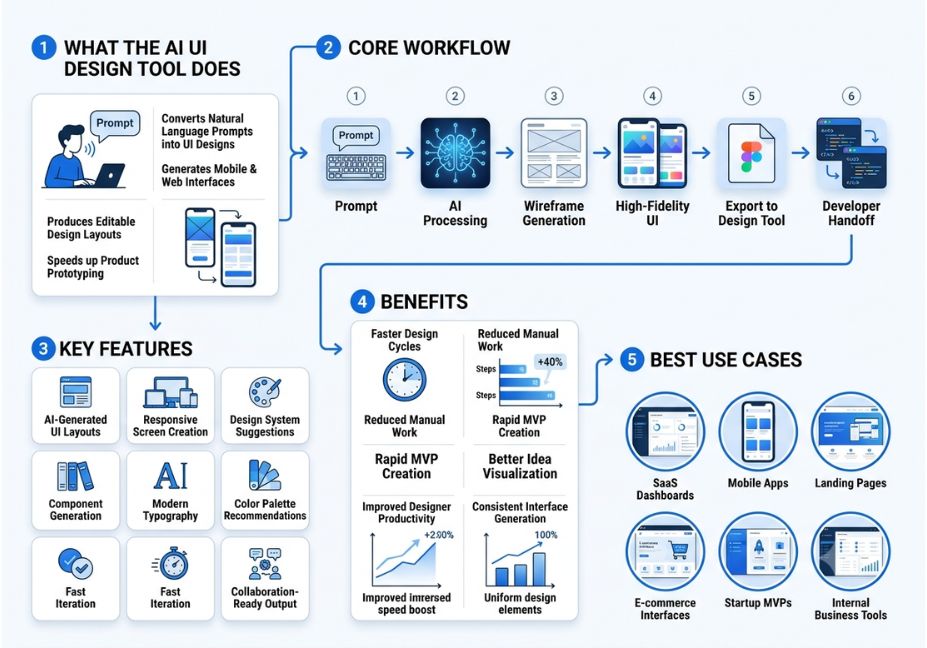
Under the hood, Stitch runs on Gemini 2.5 Pro (with Gemini 3 integration added later), Google’s multimodal model family. The workflow Galileo pioneered survives almost intact:
- You describe the screen in natural language, or upload a sketch, screenshot, or annotated reference image.
- Gemini interprets intent across whichever input types you gave it text and image can be combined in one request.
- The system generates a structured layout not a flat picture, but real components with defined spacing, typography, and color tokens you can keep editing.
- You export to Figma, or pull production-ready HTML/CSS, React, or Vue code for direct developer handoff.
Did You Know? Independent reporting has pegged Stitch’s design-to-code fidelity how closely exported code renders like the design at roughly 95% during its closed beta, up from around 70% in earlier Galileo-era estimates, largely credited to reinforcement-learning fine-tuning on the export pipeline.
This mirrors a pattern regular readers of this site will recognize from agentic workflows: a natural-language “planner” (the prompt) hands off to a specialized “executor” (the layout-and-code generator), with a feedback loop for refinement the same tool-use loop structure that shows up in agent orchestration, just applied to pixels instead of API calls.
Galileo AI (Stitch) Use Cases 4 Real-World Examples
- Early-stage founders turning a one-line pitch into a clickable prototype for investor decks, without hiring a designer first.
- Product managers mocking up a feature idea well enough to hand to engineering for a technical feasibility check.
- Solo developers who can write backend code but stall on front-end layout, using generated HTML/CSS or React as a real starting scaffold.
- Design teams using it as a rapid-ideation front-end before moving the winning concept into Figma for full production polish.
Best AI UI Design Tools Comparison Table
| Tool | Input Types | Code Export | Pricing (2026) | Best For |
|---|---|---|---|---|
| Google Stitch (formerly Galileo AI) | Text, image, sketch, voice | Figma, HTML/CSS, React, Vue | Free (Labs, generation caps) | Fast ideation inside Google’s ecosystem |
| UX Pilot | Text, existing Figma design system | Figma plugin | Freemium, paid tiers | Teams wanting brand-consistent output |
| Uizard | Text, sketch | Figma, code export | Freemium | Wireframing and low-fidelity flows |
| UXMagic | Text | Figma, React, HTML | Credit-based paid plans | Production-grade, professional workflows |
Pro Tip: If your team is worried about being locked into Google’s roadmap for an experimental Labs product, export early and often save Figma files and code output as soon as a design is usable, rather than treating Stitch as long-term storage for in-progress work.
Step-by-Step: Generating a UI with Stitch (the Galileo AI Successor)
- Open Stitch and choose a text, image, or sketch starting point.
- Write a specific prompt vague requests like “a dashboard” produce generic layouts; naming the sections, tone, and platform (mobile vs. web) narrows the output meaningfully.
- Review the generated screen and iterate with follow-up instructions (“make the header darker,” “add a bottom nav with four tabs”).
- Export to Figma for design-system alignment, or pull code directly if you’re prototyping solo.
- Hand off exported code or Figma layers to engineering, treating the output as a strong first draft rather than a finished product.
Example prompt structure:
"[Platform] app screen for [audience], showing [key sections],
in a [tone/style] visual style, [light/dark] mode."
Common Mistakes and How to Avoid Them
- Treating output as production-final. Generated code is scaffold-quality; complex interactions and custom backend logic still need manual engineering review.
- Writing single-word prompts. Specificity in the prompt is the single biggest lever on output quality this hasn’t changed since Galileo AI’s earliest days.
- Assuming permanence. Google Labs, as documented in the background on Google Labs’ experimental release model, has a long history of shipping and later discontinuing experimental products don’t build a critical workflow on a tool with no committed roadmap.
- Skipping the design system step. Tools that let you train on your own component library (rather than forcing a generic style) tend to produce output that needs far less rework before shipping.
What Designers Are Saying
Reaction to the transition has been mixed but broadly positive on quality. One verified user review of the original product summed up the appeal plainly, praising how well it grasped UI/UX-specific terminology and how easily its output handed off to Figma even for less experienced designers. Since the Stitch relaunch, sentiment has split along a predictable line enthusiasm for the jump in fidelity and code quality, tempered by wariness about depending on a free, experimental Google Labs product for real product work.
FAQ People Also Ask
Is Galileo AI still available?
No. Galileo AI was acquired by Google in May 2025 and is no longer available as a standalone product. It now operates as Google Stitch, a free experimental tool inside Google Labs.
What is Galileo AI called now?
Galileo AI is now called Google Stitch. The underlying prompt-to-UI technology carried over, but the product runs on Gemini models and lives inside Google’s ecosystem rather than as an independent startup product.
How does Galileo AI (Stitch) actually work?
It uses a multimodal AI model to interpret text descriptions, images, or sketches, then generates a structured UI with real components layouts, typography, and color tokens that export to Figma or to HTML/CSS, React, or Vue code.
Is Galileo AI / Google Stitch free?
Galileo AI previously charged from $19/month after a limited free tier. Stitch, as a Google Labs experiment, is currently free with monthly generation limits, though that could change as it matures.
What are the best alternatives to Galileo AI?
UX Pilot, Uizard, and UXMagic are the most commonly cited alternatives, each aimed at teams who want a text-to-UI generator that isn’t tied to Google’s product roadmap.
Conclusion
Galileo AI proved that a text-to-UI generator could go from novelty to genuinely useful design tool and then, within three years, get absorbed entirely into a bigger company’s roadmap. If you’re searching for the Galileo AI UI design tool today, the honest answer is that you’re really looking for Google Stitch, its Gemini-powered continuation, or one of the independent alternatives built specifically to avoid that kind of platform risk. Whichever you choose, treat generated output as a fast first draft, not a finished product. Bookmark this guide and explore more hands-on AI tooling breakdowns at agentiveaiagents.com.