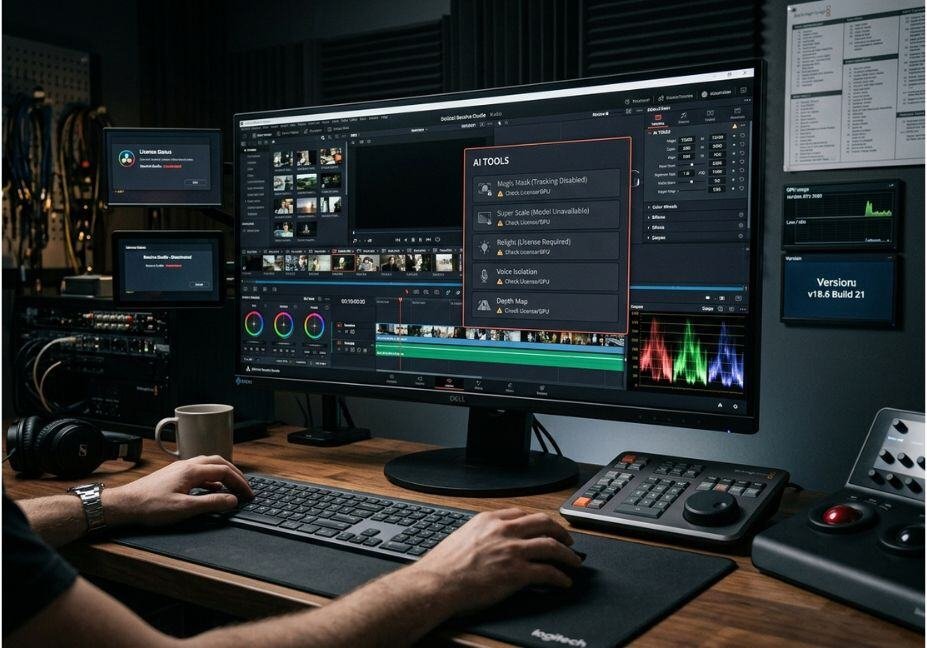
Encountering the greyed-out appearance of DaVinci Resolve AI tools can lead to some confusion since the user interface can show that particular function, but you are not able to use it at this time. The difference between the two situations is essential: not every greyed-out AI option represents a GPU issue.
The most frequently encountered reasons are simply that you are using the free version of software instead of DaVinci Resolve Studio. Currently, Blackmagic Design advertises DaVinci AI Neural Engine and various advanced AI features as Studio-exclusive functions. The official website of DaVinci Resolve 21 specifies Neural Engine to be included into the list of advanced Studio capabilities.
Nevertheless, getting the license is not the end of the diagnosis. Even users of the Studio version can see inactive AI menus because of installation errors, problems with the activation of the license, inappropriate context, bugs of the software, absence of required AI models, or other GPU/driver issues.
This instructions follow the logical sequence of troubleshooting: find out which layer fails and repair it and only then proceed to other system diagnostic steps.
What Does a Greyed-Out AI Tool Mean in DaVinci Resolve?
The greyed version of the AI tool means that Resolve is disabling the use of the feature. The reason is dependent upon the AI tool in question and the version of Resolve that has been installed.
DaVinci Resolve’s AI capabilities are based on the AI Neural Engine from DaVinci, which includes such things as facial recognition, object detection, Smart Reframe, Speed Warp, Super Scale, and other machine learning operations. The Neural Engine is claimed by Blackmagic Design to be included in the Studio feature set.
Most likely, the following are the possible causes of the situation:
. DaVinci Resolve Free has been installed.
. Studio has been installed, but the license is not activated.
. The wrong version has been installed.
. The feature is available only from a particular release of Resolve.
. The required AI model has not been downloaded.
. The GPU or driver settings are causing the execution to fail.
. The particular version contains a bug.
Thus, once again it is essential to not change any GPU settings while checking the license and the installation first.
1. Check Whether You Installed DaVinci Resolve Studio
First, the version of the program must be checked.
Blackmagic Design provides a free version called DaVinci Resolve 21 and a commercial one called DaVinci Resolve Studio 21. The latter one offers additional features or tools that allow one to apply machine learning techniques as well as some other advanced functionality.
If the free version was installed, the fact that many AI features don’t work may indicate that the product is functioning correctly.
How to check the version:
1) Start DaVinci Resolve.
2) Go to the “About DaVinci Resolve” window to see if it is the Studio version.
3) If there are any discrepancies between DaVinci Resolve and the version you possess, you need to install the proper one.
Note: Buying a Studio license does not make your Free installation Studio version. If the Free edition is installed, it should be replaced with the one that supports the current licensing system applied by the company.
| Capability | Resolve Free | Resolve Studio |
|---|---|---|
| Core editing | Yes | Yes |
| Color grading | Yes | Yes |
| Fusion | Yes | Yes |
| DaVinci AI Neural Engine | Limited/No | Yes |
| Magic Mask | No | Yes |
| Advanced AI features | Limited/No | Yes |
| Advanced Resolve FX | Limited | Yes |
| Higher-end professional features | Limited | Yes |
If you are using Free and the entire AI Tools category is greyed out, this is likely the explanation.

2. Verify That Your Studio License Is Activated
If you are using Studio already, check activation before proceeding with accessing your GPU.
In practice, we see that many users reinstall Resolve on their new computer thinking that the system recognizes the Studio license automatically. Users report that after reinstalling or changing the computers, they encounter grayed-out AI features and must eventually go through license activation and installation process.
Check the license
Look for licensing or activation options in Resolve and make sure that the software recognizes your entitlement for Studio.
Check:
. License status
. Installed version
. Computer activation
Whether you have the required version of Studio in use.
If Studio was working before but has not worked after the computer change, the failure is rather in recognition of the license than in a hardware malfunction.
3. Confirm That You Have Installed the Right Version of Resolve
Using versions that do not match can lead to unbearable AI problems.
For example, in the Resolve 20 beta period, users reported that AI Tools menu was inactive. Participants on forums hosted by Blackmagic Design warned the users to check if the installed build was Studio-based.
Beta versions are notable for the importance they acquire as AI features are usually connected to the following changes:
. Components of Neural Engine
. GPU processing
. AI system models
. Menus that depend on pages
. Media analysis
. Integrations with third-party software
If you have installed a newer version recently, you should not suppose that your hardware does not support this version.
To ensure a safe upgrade process you should follow these steps:
. Make sure you know your current version of Resolve.
. Make sure you know if it is Free or Studio.
. Make sure you know which version is the most stable version currently.
. Make sure to back up your important databases and projects.
. Install the corresponding stable version.
. Make sure to recheck the AI Tools menu.
4. Confirm if the AI Tool Necessitates a Certain Context
Not all instances of absent AI capabilities occur due to license issues.
Certain tools can only be seen if you are on the right Resolve page, media category, or selection context.
One good instance is IntelliScript of the version 20 of Resolve. According to a supporting explanation offered by Blackmagic Design, IntelliScript can be found through particular clip context available from the Media Pool, but not whichever world of AI Tools.
IntelliSearch of the version 21 of Resolve has another caveat; according to Blackmagic’s official New Features Guide, the AI models need to be downloaded via Extras Download Manager before any media can be subjected to analysis.
Hence, prior to concluding that the tool is faulty, please make sure that:
. You are using the suitable page.
. You select the right clip.
. You are executing right-clicking on the object subject to use.
. Some Media Pool analysis needs to be carried out.
. The relevant feature is supposed to be available in Color, Edit, Fairlight, Fusion, or other Resolve pages.
. Some installed AI models are on duty.
Part 5: Acquisition of AI Models
Some of the modern AI tools aren’t fully integrated upon their installation.
Take for instance, Resolve 21’s feature, IntelliSearch that uses special AI models that have to be downloaded from the Extras Download Manager. According to Blackmagic’s New Features Guide, there are various models of Faster and Better.
There’s an important distinction to be made here:
Studio license ≠ there being every AI model fully installed.
You will need to check for any missing AI models
Go to the proper Extras Download Manager and see what AI packages exist.
Once there:
. Download the required model
. Let some time pass.
. Restart Resolve if needed.
. Process your media
. Try the AI feature once again.
6. Inspect GPU Drivers and Configuration
Assuming that the proper Studio edition, license, version, and context has already been validated, the next step involves checking the GPU.
The DaVinci AI Neural Engine uses GPU technologies for enhancing machine learning and image processing tasks. The Neural Engine is said by Blackmagic to be cross-platform, optimized and based on the most up-to-date GPU breakthroughs.
While GPU problems might generally create hindrance to the running of any process and hence might cause it to disregard commands, still, they are relatively lower down the troubleshooting ladder as compared to other devices or licences.
The items that have to be checked include:
. GPU driver version
. CUDA/OpenCL setup
. Choice of GPU in Resolve
. VRAM available
. Compatibility with the OS
Whether the integrated GPU option or discrete GPU is selected
Whether the recent changes were applied to the GPU driver
For Windows users, it is essential to ensure that their GPU driver, either NVIDIA or AMD, is well-suited for the version of Resolve they are currently using.
For Mac users, it is important to check whether the trouble began with a new version of the OS or Resolve.
7. Reinstall Resolve Studio in Case of Incorrect Installation
If you have purchased Studio but the software is acting as though it were a free version of Resolve, reinstalling it may be more effective than examining every single option.
Reports from users reveal that they were able to solve the problems after reinstalling Resolve Studio.
This option seems to be worth considering especially in the following situations:
. You moved from Free to Studio versions
. You installed the beta and switched from one version to another one
. The installer has, apparently, installed a wrong version
. The application worked before on the same PC
. AI menu disappeared upon update
. License has been activated, but Studio features are inaccessible
. Recommended sequence of actions
. Backup your project database
. Export the most important projects or keep them safe
. Double check your license for Studio
. Download the latest installation package for Studio from Blackmagic Design
. Uninstall a faulty version, if needed
. Install the correct version of Studio
. Activate your version of Studio
. Start Resolve
. Check how one known Studio AI function works
Which Fix Should You Try First?
Use this quick diagnostic table before making changes.
| Symptom | Most likely cause | First action |
| Entire AI Tools menu is greyed out | Free edition | Check About Resolve |
| Studio purchased but Free features appear | Wrong installation | Install Studio build |
| AI stopped after moving PCs | License activation | Verify activation |
| One particular AI tool is missing | Context/page limitation | Check its documented workflow |
| IntelliSearch unavailable | Model/media analysis | Download model and analyze media |
| AI feature crashes | GPU/driver/resource issue | Check GPU and drivers |
| Problem started after beta/update | Build bug | Test latest stable build |
| Studio worked before reinstall | Installation/configuration | Reinstall Studio |
The important pattern is that not every greyed-out AI tool has the same cause.
Common Mistakes When Troubleshooting DaVinci Resolve AI
Error #1: Trying to upgrade GPU driver
Driver updates will not enable features that are available for Studio edition only.
First, understand which software edition and license you have.
Error #2: Assuming AI features can be utilized everywhere
Resolve features are context-specific. Examples of contexts include us of IntelliScript and IntelliSearch.
Error #3: Following an old tutorial
If a tutorial shows version 19, there may be differences in menus, AI models and placement of features in version 21.
Error #4: Ignoring the need for downloading of AI model
It’s possible that newer AI capabilities have their own model requirements.
Error #5: Misusing beta version
AI-powered capabilities are usually susceptible to any changes in GPU processing and builds of the software.
Error #6: Reinstalling without saving your projects.
No troubleshooting should turn into project management disaster.
Helpful Hint: Be sure to note your Resolve’s version, build, operating system, GPU, driver version and Free/Studio status prior to any troubleshooting. Otherwise you won’t be able to turn a vague “AI doesn’t work” report into a concrete technical issue.

FAQ: DaVinci Resolve’s AI Tools Greyed Out
What is the reason for the greying out of DaVinci Resolve’s AI tools?
The first reason is the use of the Free edition version of the software, which doesn’t support the use of AI. Other reasons might be: the Studio license was not activated, installation is not done correctly, the workflow context being incorrect, the absence of AI models, software bugs, and video card issues.
Are DaVinci Resolve AI tools available for free?
Most of the sophisticated DaVinci Resolve AI features are part of DaVinci Resolve Studio, but not the Free version. Blackmagic Design indicates that DaVinci AI Neural Engine is a part of Studio capabilities and lists all AI functions as additional features of the Studio.
What could possibly be the reason for the greyed-out Magic Mask feature in DaVinci Resolve?
If Magic Mask is not working, start by confirming if you own the Studio version as it is part of advanced Neural Engine features belonging to DaVinci Resolve Studio. In case you already have the Studio version, check the version number, installation type, GUI setup, and the section of the app where you are trying to access the tool.
What is stopping IntelliSearch from functioning properly in DaVinci Resolve 21?
Having Resolve downloaded in your system is not sufficient for IntelliSearch to be fully operational. According to Blackmagic’s Resolve 21 documentation, you have to download the AI model using Extras Download Manager. After that, your media files need to be processed so that you can start using IntelliSearch.
Is it possible for GPU drivers to affect the performance of AI in DaVinci Resolve?
Yes, it is possible that your GPU configuration and drivers play a role in AI-related problems. However, it needs to be noted that a driver update will not open any AI feathers if you happen to be using the free version of the software.
Conclusion
When we encounter a situation where DaVinci Resolve AI tools are deactivated, we do not have to resort to hardware upgrades or reinstalling the software.
To resolve the issue, we need to perform the three most logical checks, which are checking the Free vs. Studio version of DaVinci Resolve, carrying out the license verification, and the installation check.
DaVinci Resolve 21 is constantly incorporating new AI capabilities thanks to the DaVinci AI Neural Engine, with additional tools being introduced that bring their own calculations.
The principle of action is clear – we must make sure everything is alright with the application and check everything else later.