
The occurrence of a delayed Azure Virtual Desktop login is seldom attributed to a single apparent metric since a user may describe the logon to be one that takes two minutes while the delay is related to FSLogix profile loading, processing of Group Policy, Shell Start, achieving authentication, making network connections, or even having an overloaded session host.
This is what makes AI tools to assess slow AVD logons great for usage. Even if an LLM may not be capable of resolving AVD issues, AI is good at correlating lots of telemetry, creating KQL queries, describing error patterns, and forming a troubleshooting hypothesis out of raw logs.
Microsoft has developed its AVD Insights model which breaks down the connection time to several phases. What is more, the model points out the Logon, Profiles, GPOs, Shell Start, and FSLogix time.
The right strategy would be to bring together deterministic telemetry data and AI-assisted analysis. This way, administrators will have a workflow that starts from measuring and determining the problem stage, collecting relevant logs, and then asking AI for interpretation.
What Causes Slow Azure Virtual Desktop Logins?
Slow AVD logins generally come from one of five areas: networking, identity, profiles, policy processing, or session-host resources.
Microsoft’s AVD Insights documentation divides the connection process into User Route, Stack Connected, Logon, and Shell Start to Shell Ready. The Logon stage itself contains Profiles, GPOs, Shell Start, and FSLogix components.
A useful diagnostic model is:
| Symptom | Likely area | First evidence to inspect |
|---|---|---|
| Long time before host connection | Network/routing | RTT, gateway, route |
| Long profile loading | FSLogix | FSLogix event logs |
| Long policy stage | GPO | Group Policy processing |
| Desktop appears after long shell delay | Host/app load | CPU, memory, AppX |
| Repeated authentication prompts | Entra ID/Conditional Access | Sign-in logs |
| Only one host is slow | Session host | Host-specific logs and resources |
Technical Note: Do not start by changing registry settings or disabling services. First determine which timing component is actually responsible.
This matters because a slow login caused by Azure Files latency requires a completely different solution from a login delayed by GPO processing or Microsoft Entra authentication.
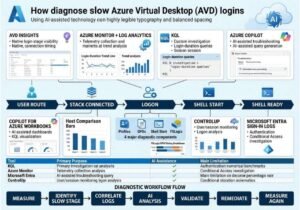
7 AI-Assisted Tools to Diagnose Slow AVD Logins
1. Azure Virtual Desktop Insights
AVD Insights is the most important diagnostics you have at your disposal. It brings the monitoring power of Azure to connection and logon diagnostics.
This component provides information like “time to connect”, as well as the different stages starting from launching АVD resource until the desktop becomes usable. Microsoft defines Logon as a process which contains profile loading, GPO processing, Shell Start, and FSLogix.
Use this information to determine the following:
Is the delay occurring before or after the session host connection?
Are profile times increasing?
GPO processing has abnormal duration?
FSLogix has increased time?
Is this problem specific to users or hosts?
2. Azure Monitor + Log Analytics + KQL
Azure Monitor is referred to as the data layer while KQL is described as the investigation language.
One is able to use Log Analytics for establishing a correlation between connection records, checkpoints, host names, users and timestamps. Indoors instruction of Microsoft Community shows an instance of using AVD telemetry and KQL for the purpose of calculating login duration.
A simplified point of initiation may appear this way:
WVDConnections
| where Type =~ “WVDConnections”
| where State =~ “Started
| project
TimeGenerated,
CorrelationId,
SessionHostName,
UserName
| order by TimeGenerated desc
For a more thorough investigation, one may correlate connection with checkpoints including ShellReady.
let connections =
WVDConnections
| where Type =~ “WVDConnections”
| where State =~ “Started”
| project CorrelationId, UserName, SessionHostName,
StartTime = TimeGenerated;
let ready =
WVDCheckpoints
| where Name =~ “ShellReady”
| project CorrelationId,
ReadyTime = TimeGenerated;
connections
| join kind=inner ready on CorrelationId
| extend LogonSeconds = datetime_diff(“second”, ReadyTime, StartTime)
| project UserName, SessionHostName, StartTime,
ReadyTime, LogonSeconds
| order by LogonSeconds desc
3. Azure Copilot
Azure Copilot is the simplest form of AI-enabled solution in Azure architecture.
According to Microsoft, Azure Copilot serves as an AI-driven interface that provides access to all Azure resources, reports, metrics, troubleshooting processes, and operations. The program can also help formulate queries and troubleshoot problems.
The following prompts can be used for solving issues related to AVD:
“Review the data regarding AVD connections looking for unusually long login times.”
“Collect the data on login failures, classify it according to the session host, and find out if a particular session host caused most cases.”
“Explain FSLogix issues and discover the most likely cause for this.”
“Write a KQL query for finding AVD sessions that experienced unusually long login times.”
Thus, it is important to provide evidence and context. The AI assistant is not an omniscient tool.
4. Azure Workbooks Co-pilot
For teams conducting several investigations to know about performance of the AVD logon, a workbook that employs artificial intelligence proving to be more effective than independent chat conversation.
The copilot experience in Azure Workbooks that is being offered by Microsoft at the present time would be capable of creating and changing visual images as well as log inquiries which are made using KQL with the help of the natural language. Moreover, it can check graphs for the identification of patterns and anomalies.
The AVD dashboard that could be of a great use includes the following factors:
Average login duration
Likelihood-based login duration
Logon status duration by session host
Timing of FSLogix
Timing according to GPO
Shell Start timing
Number of events related to failed validation of authentication
When you will put together all these variables, this will allow you to turn troubleshooting from the single time investigation into the permanent observation.
5. ControlUp as a tool for Logon Analysis
ControlUp goes beyond being just another chatbot; it is an advanced tool in monitoring and solving problems for end-users.
What makes ControlUp amazing is that the solution can provide valuable information on the network performance, quality of resources, and application use. Also, community troubleshooting proves that the usages of analysis of logon time can help administrators to detect delays linked to FSLogix/AppX.
6. Use of Microsoft Entra Sign-In Logs and AI Information
However, in some occasions, “slow login” doesn’t necessarily mean that AVD is slow.
The truth is that depending on the situation, one can consider that the entire AVD connection is slow in case of:
Repeated requests to authenticate, issues with Conditional Access, and identity problems that are related to multi-factor authentication.
As per AVD SSO troubleshooting guidelines, Microsoft suggested examining Microsoft Entra sign-in logs, error codes, and conditional policies.
As it was reported, AI can help aggregate a lot of log-ins as follows:
Process login events that happen in AVD and group them according to the following criteria:
1. Error code
2. Conditional Access policy
3. Authentication method
4. User
5. Time of event
Then find which version from the listed ones can be treated as the one which occurred most frequently.
7. An LLM Being A Log Correlation Assistant
Last but not least is its general LLM-based process.
Some helpful enterprise applications for processing include:
FSLogix log files
Windows Event Log files
AVD telemetry output
KQL results
Error value
GPO time
System performance information.
The key difference is between analyses and authority.
An LLM can state:
“The examined sessions indicate a long FSLogix installation period where most of them were conducted in the same storage location.”
But it should never go as far as saying:
“Please disconnect FSLogix.”
The AI should always rank hypotheses and never substitute the engineering inspection.
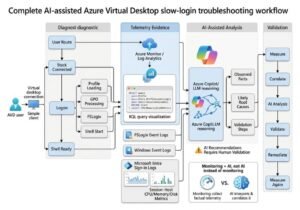
How to Build an AI-Assisted AVD Login Diagnostic Workflow
Step 1. Create a base line
Log the regular sign-in performance before starting the investigation of the issue
Monitor:
medial logon time
P95 or P99 sign-in time
Session host
User
Profile type
Time
Client
Location
Step 2. Locate the slow stage
Leverage the AVD insights tool to determine what type of issue it is mainly
User Path
Stack Connected
Logon,
Shell Start-PowerShell
If it’s the Logon that is interrupted, analyze Profiles, Group policies, Shell Start and FSLogix
Step 3. Correlate the supplementary telemetry
Gather and analyze the required information from:
Log analytics
FSLogix log files
Windows Event Viewer
Microsoft Entra logs
Session-host performance metrics
Microsoft acknowledges FSLogix and Windows Event Logs as important data sources used in AVD Insights.
AI Tools vs Traditional AVD Diagnostic Tools
| Tool/Approach | Best For | AI Capability | Main Limitation |
| AVD Insights | Login-stage visibility | Low | Requires interpretation |
| Azure Monitor | Telemetry and trends | Medium | Large datasets can be complex |
| Log Analytics/KQL | Custom investigation | High with Copilot | Requires query knowledge |
| Azure Copilot | AI-assisted Azure troubleshooting | High | Suggestions need validation |
| Copilot Workbooks | AI-assisted dashboards | High | Preview capabilities may change |
| ControlUp | User/session monitoring | Medium/High depending on feature | Third-party platform |
| General LLM | Log explanation/correlation | High | No native environment visibility |
The strongest architecture is therefore not AI instead of monitoring. It is monitoring plus AI.
Common Mistakes When Diagnosing Slow AVD Logins
Assigning blame for the network instantly
A user stating ”AVD is slow” does not necessarily imply high RTT. AVD Insights differentiates between network-related stages and logon and shell readiness thus it is important to verify the situation in the beginning.
Disregarding FSLogix
FSLogix profile operations can account for significant parts of logon time, especially when the profiles are sizable or the profile storage involves latency.
Considering all hosts as equally the same
When the majority of users being fast but some users connected to a specific host are slow, the problem needs to be investigated with the problematic host before attempting to correct matters in the whole pool of hosts.
Ignoring the effect of updates
The issue of AVD login failure is sometimes observed after an update of Windows or a relevant application has been conducted. Community-based studies provide examples of problems caused by certain updates that affected AppX, FSLogix, created black screens, etc.
Believing that the outputs of AI are always true
An LLM can give a brilliant explanation but at the same time be entirely wrong. However, the diagnosis should always be based on evidence.
FAQ — Related Questions
What leads to slow Azure Virtual Desktop logins?
In most instances slow AVD logins are attributed to the identification of profile by FSLogix, processing of Group Policy, overload of resources at the level of session-host, issues of network, problems of authentication, as well as shell initialization. AVD Insights enables the determination of the stage when a delay occurs, whether it be in the process of routing, establishing of connection, logging in or preparing of the shell.
How do I handle slow AVD logins?
The troubleshooting begins from the checking of AVD Insights to find out which stage of connection is slow. If it is due to User Logon the comparison of Profiles, GPO (Group Policy Object) and Shell Start together with timing of FSLogix will be necessary. Then, one has to correlate the data with Log Analytics, Windows Event Logs, FSLogix logs and performance metrics of session-host.
What is the method to quantify AVD logon duration?
The measurement process of AVD logon duration is done with the help of AVD Insights along with Log Analytics/KQL. The internal workings of AVD Insights involves calculating logon duration by means of using the diagnostic checkpoints. KQL is further used in building reports for distinctive users, hosts, timestamps, and connection IDs.
Is the time taken for AVD login affected by FSLogix?
The answer is yes. FSLogix may either positively or negatively affect the AVD login duration, because profile-related processes such as profile mounting and profile operations will take place during logon. Microsoft has observed that one of the stages increasing the connection durations is FSLogix.
Is it possible for AI to aid in troubleshooting Azure Virtual Desktop?
Yes, AI can facilitate AVD troubleshooting by speeding up the process of interpretation of KQL queries, logs, errant codes and observing performance trends. Azure Copilot can aid administrators in figuring out resources in Azure, its metrics, logs, and troubleshooting methods. However, the information derived from AI should be regarded as hypotheses that require verification by actual telemetry data.
Which AI tool is the most effective for AVD login diagnostics?
There is no ultimate answer to the question of the best method suitable for troubleshooting AVD solution, as there is no best tool that can be the best in every case of its use. AVD Insights tool is the best start. Azure Copilot and Copilot-enabled Workbooks do provide a supporting AI-enabled investigation tool, and dedicated monitoring tools can give the most in-depth analytics.
Conclusion
The quickest way to diagnose a sluggish AVD login is not speculating on which service has failed. It’s measuring the login steps so as to determine where the hindrance occurs, checking related log files, and employing AI to make sense of everything.
Three key points to follow are:
Do measurements before making any changes. AVD Insights can differentiate between routing, connection, logon, FSLogix, GPO, and shell-readiness delays.
Make use of different sources of telemetry. Combining Log Analytics, KQL, FSLogix logs, Entra sign-in data, and host metrics makes the evidence more robust.
Use AI as an investigator not an expert in the field. Azure Copilot and AI-related analysis can compile the evidence and create queries but any changes in production have to be approved by people.
For tech teams that need to create robust AVD setups, AI tools for detecting AVD login issues work best when placed on a solid monitoring infrastructure.
Save this process and find other solid practical knowledge on AI-agent, LLM, RAG, and automation at agentiveaiagents.com.