
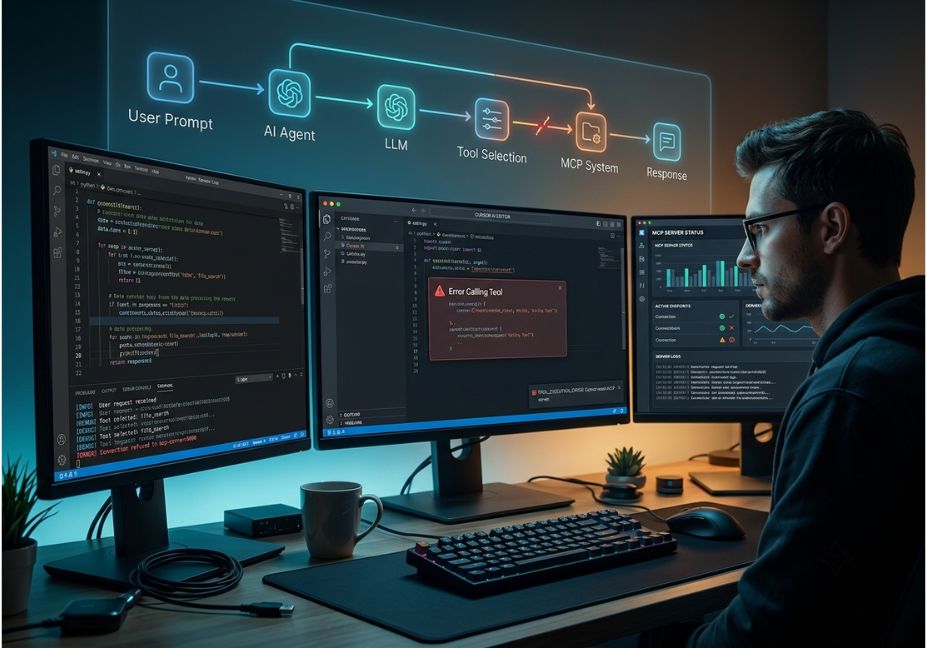
A Cursor AI error calling tool message rarely means the same thing twice. Sometimes it’s a dead MCP server. Other times it’s an expired auth token. And occasionally, the model itself picks the wrong tool and passes malformed arguments. In fact, Cursor’s own engineering team has acknowledged on the community forum that the underlying model can “get itself in a state where it doesn’t call the tools correctly” which is a very different failure mode from a simple network timeout, even though both display the exact same error text.
That ambiguity is exactly why most troubleshooting guides fail you. They treat the message as a single bug and hand you a generic checklist: restart the app, check your Wi-Fi, reinstall. But in practice, the error sits at the boundary between Cursor’s agent loop and the Model Context Protocol (MCP) the open standard Cursor, Claude Desktop, and other AI coding tools use to let a language model call external tools. So once you know which layer failed, the fix usually takes thirty seconds instead of an afternoon of guesswork.
What Is the “Error Calling Tool” Message? (Cursor AI Error Calling Tool Meaning)
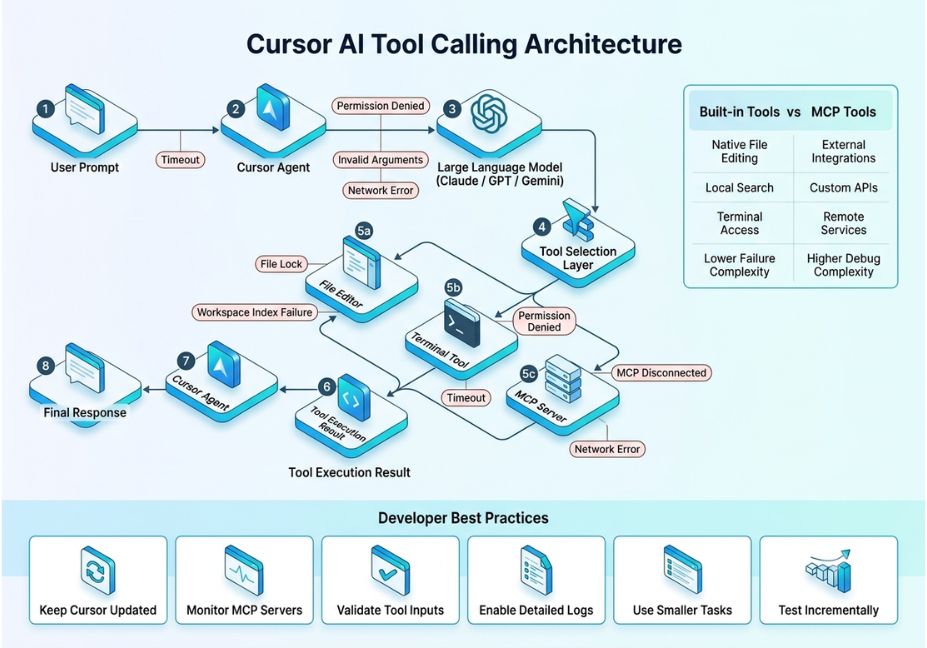
Cursor’s AI agent whether you’re using Chat, Composer, or Agent mode works like most modern coding assistants: it runs a tool-use loop. First, the model decides an action is needed. Then it emits a structured function call. Finally, Cursor executes that call against either a built-in tool (edit_file, run_terminal_cmd) or an external MCP server. When that execution step fails, Cursor surfaces one generic wrapper message “Error calling tool” no matter whether the failure happened in the network layer, the server code, or the model’s own reasoning.
This distinction matters because, according to the Model Context Protocol specification, MCP defines two separate error categories: protocol-level JSON-RPC errors (malformed requests, unknown tool names, dropped connections) and tool-execution errors (the tool ran, but returned a failure). Since Cursor’s UI currently collapses both into one message, figuring out which category you’re in is the real first step to fixing it.
How Does Tool Calling Work in Cursor? (The Mechanism Behind the Error)
Cursor’s agent mode is built on the same function calling pattern popularized by OpenAI’s GPT models and now used broadly across agent frameworks, including Anthropic’s Claude models. Here’s how it works, step by step:
- First, the model proposes a tool name and arguments based on the conversation context.
- Next, Cursor validates the call against the tool’s JSON schema.
- Then, for MCP tools, Cursor forwards the call over JSON-RPC 2.0 to the connected server.
- Finally, the server (or a built-in handler) executes the action and returns a result or an error.
This loop is conceptually similar to the reasoning-acting cycle described in the ReAct paper (Yao et al., 2023) the model interleaves reasoning steps with tool actions, then folds the observation back into its next decision.
Did You Know? Because the loop is stateful across a chat session, a single malformed tool call earlier in a long Composer session can corrupt the model’s understanding of what’s available. As a result, every subsequent tool call in that thread may fail even ones completely unrelated to the original error.
Cursor “Error Calling Tool” Real-World Failure Patterns
Based on reports across the Cursor community forum, the error generally clusters into four recurring patterns:
- MCP server unreachable or misconfigured the server never starts, or Cursor can’t find it after a config change.
- Tool name collision across multiple MCP servers for example, one forum user reported
MCP error -32602: Tool not found, triggered because two SSE-based MCP servers exposed tools with conflicting IDs. edit_filefailing on files opened outside a project folder this is extremely common, and specific to Cursor’s built-in file-editing tool.- Expired or corrupted authentication tokens common with OAuth-backed MCP integrations, such as Figma’s MCP server.
Pro Tip: Before retrying the failed action, open the Developer Console (Help > Toggle Developer Tools, or Ctrl+Shift+I). The raw JSON-RPC error code tells you immediately whether you’re dealing with a connection problem or a tool-execution problem information the chat UI strips out.
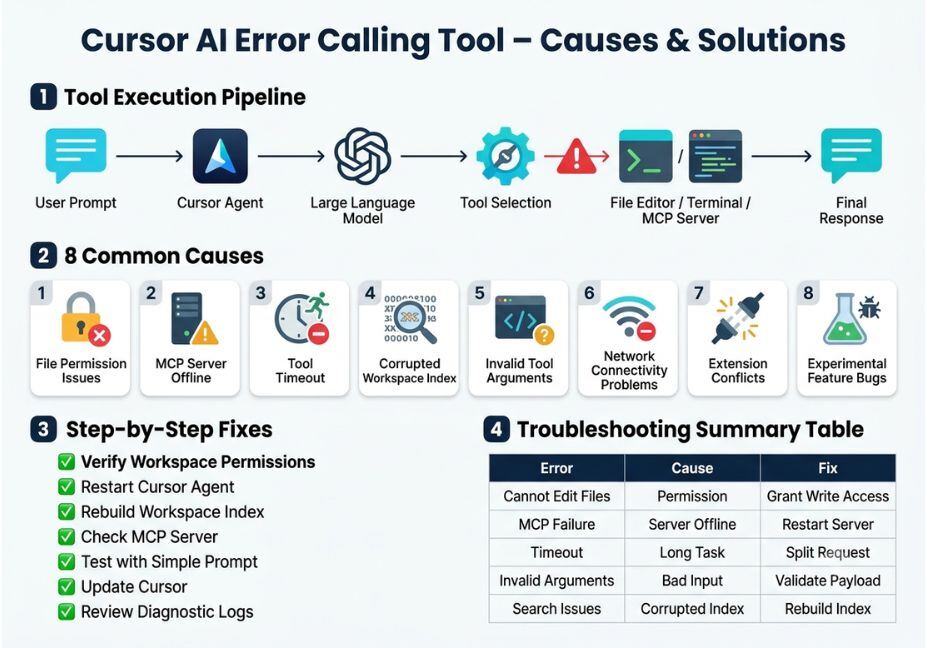
Best Tools and Approaches for Diagnosing “Cursor Keeps Failing to Call Tool”
| Diagnostic Step | What It Tells You | Fix Path |
|---|---|---|
| Check MCP server status badge in Settings | Server never connected | Restart server, verify command path |
| Open Developer Console for JSON-RPC code | Protocol vs. execution error | Route to matching fix below |
| Start a fresh Composer/chat session | Stateful model confusion | Resets tool-call context |
| Switch the underlying model (e.g., between GPT and Claude options) | Model-specific tool-selection bug | Some models call tools more reliably than others |
Technical Note: Framework and app versions evolve rapidly, so treat these fixes as current for Cursor’s behavior as of mid-2026. Always cross-check against Cursor’s own changelog before assuming a bug is unresolved.
Step-by-Step: How to Fix “Error Calling Tool” in Cursor
- Open the file’s parent folder, not just the file. Since the
edit_filetool needs full project context to resolve paths, useFile > Open Folderon the project root rather than opening a single file directly. This alone resolves a large share ofedit_filefailures. - Read the JSON-RPC error code in Developer Tools. For instance,
-32602typically means invalid parameters or a tool-name collision,-32001usually means a timeout, and “Tool not found” means the MCP server’s tool registry and Cursor’s cached list are out of sync. - Restart the MCP server connection. In Settings → MCP, disable and re-enable the affected server, or remove and re-add it entirely several users found this cleared stale tool registrations that a simple app restart didn’t fix.
- Clear and re-authenticate MCP tokens. Open the Command Palette and run “Clear All MCP Tokens,” then reconnect. This resolves most auth-related failures on OAuth-backed servers.
- Start a new chat or Composer session. Because long sessions can leave the model in a confused tool-selection state, a fresh session often resets that context cleanly.
- Switch models if the failure is isolated to tool calls. Some models are simply more reliable at emitting well-formed function calls than others, so if one model consistently mis-calls a tool, try a different one in Cursor’s model picker.
python
# Minimal MCP tool definition — mismatched schemas here
# are a common source of "invalid parameters" errors
from mcp.server import Server
from mcp.types import Tool

server = Server("example-tools")

@server.list_tools()
async def list_tools() -> list[Tool]:
    return [
        Tool(
            name="search_docs",
            description="Search project documentation",
            inputSchema={
                "type": "object",
                "properties": {"query": {"type": "string"}},
                "required": ["query"],
Architect’s Note: If you’re building your own MCP server for Cursor, validate your inputSchema against real model outputs before shipping. Otherwise, a schema that’s technically valid JSON but too loosely typed becomes one of the most common causes of silent tool-execution failures downstream.
Common Mistakes and How to Avoid Them
- Assuming every occurrence has the same cause. Treating the message as one bug leads to trying restarts repeatedly, when the real issue is actually an auth token or a schema mismatch.
- Ignoring the Developer Console. Since the chat UI’s error text is deliberately generic, the console is where the actual JSON-RPC payload lives.
- Running two MCP servers with overlapping tool names. This produces the “Tool not found” variant even when both servers are technically online.
- Editing files opened outside a project folder. This remains one of the single largest sources of
edit_file-specific failures. - Not updating Cursor. Because tool-calling reliability is an active area of ongoing bug fixes, an outdated build can reintroduce issues already patched upstream.
What Developers Are Saying
Reports across the Cursor Bug Reports forum show this is a known, actively worked-on issue rather than a one-off glitch. Cursor engineers have publicly acknowledged that the underlying model can occasionally get itself into a state where it doesn’t call tools correctly, and that improving that stability is ongoing work rather than a solved problem.
FAQ People Also Ask
What does “error calling tool” mean in Cursor AI?
It means Cursor’s agent attempted to execute a tool call either a built-in function like edit_file or an external MCP tool and the call failed. The message is a generic wrapper that can indicate a connection failure, a schema mismatch, or a model tool-selection error.
How do I fix “MCP error: Tool not found” in Cursor?
First, check whether you have multiple MCP servers exposing tools with the same name. Then disable and re-add the affected server to force Cursor to refresh its tool registry, and retry the call.
Why does Cursor’s edit_file tool keep failing?
The most common cause is opening a single file instead of the full project folder. So, use File > Open Folder on the project root, which lets the agent resolve file paths correctly.
Can an outdated Cursor version cause tool-calling errors?
Yes. Because tool-calling reliability improvements ship frequently, an outdated build can carry bugs that a newer release has already fixed. Check for updates via Help > Check for Updates.
Is “error calling tool” the same as hitting a usage limit?
No a usage or rate limit produces a distinct message about exhausted requests, not a tool-call failure. They’re easy to confuse, but they require different fixes.
How do I clear MCP authentication tokens in Cursor?
Open the Command Palette (Cmd/Ctrl+Shift+P), run “Clear All MCP Tokens,” and then re-authenticate with the affected service before retrying your tool call.
Conclusion
In short, the Cursor AI error calling tool message is really three different failures wearing one name: a broken MCP connection, a malformed tool call, or a model that briefly lost the plot mid-loop. Once you read the JSON-RPC code in the Developer Console, open the correct project folder, and refresh MCP tokens or server connections, you’ll resolve the overwhelming majority of cases. Bookmark this guide and explore more hands-on AI agent tutorials at agentiveaiagents.com.