
Most AI coding tools bolt a chat window onto your editor and call it a day. JetBrains AI Assistant goes further it embeds multi-model intelligence directly into the semantic layer of your IDE, meaning it understands your symbol graph, your type system, and your project structure before it writes a single line.
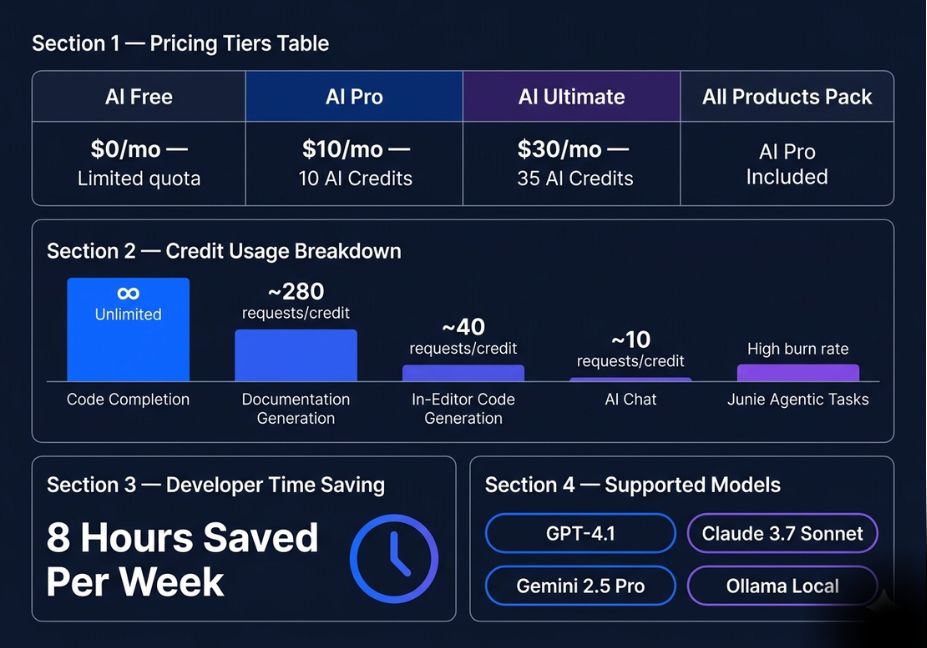
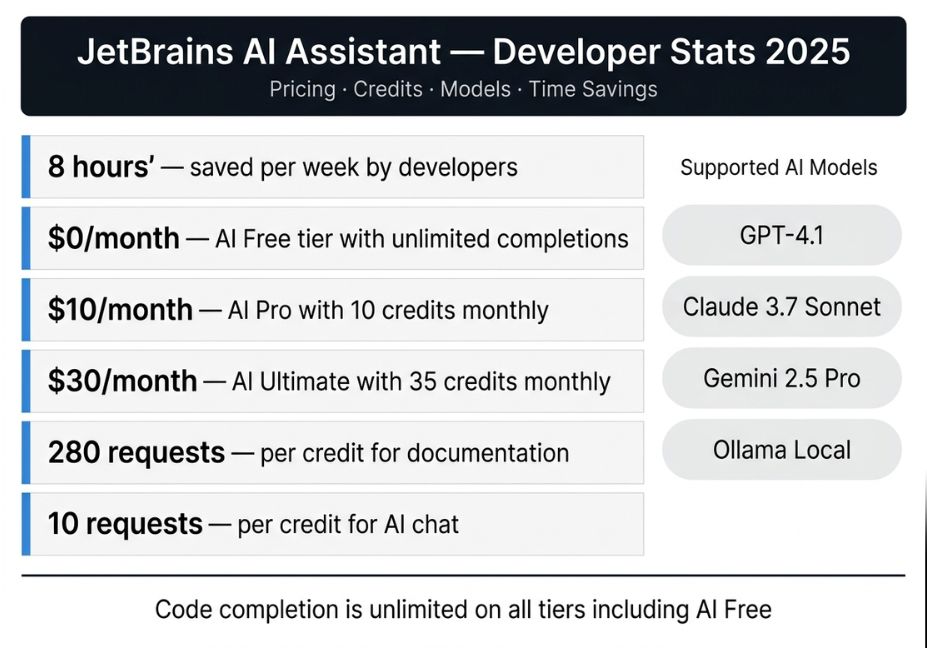
That distinction matters in production. A 2026 study in an IDE-native AI tools comparison found that JetBrains AI provides the most comprehensive language-specific intelligence through its broad language support across specialized IDEs, offering deeper semantic understanding than universal plugins can achieve. Developers reportedly save up to 8 hours per week not because the model is better, but because the context passed to it is richer.
With the 2026.1 release, JetBrains also shipped Junie a full coding agent that can plan, execute, and iterate across multi-step tasks autonomously. Combined with support for GPT-4.1, Claude 3.7 Sonnet, Gemini 2.5 Pro, and local models via Ollama, JetBrains AI has quietly become one of the most flexible agentic development environments available.
This guide covers how it works, what the quota system really costs, how Junie’s agent loop operates, and when you should and shouldn’t choose it over Copilot or Cursor.
What Is JetBrains AI Assistant?
JetBrains AI Assistant is a native AI layer built into the full JetBrains IDE family IntelliJ IDEA, PyCharm, WebStorm, GoLand, Rider, PhpStorm, RubyMine, RustRover, CLion, DataGrip, and DataSpell. Unlike a plugin that reads code as raw text, it hooks into the IDE’s code intelligence engine, giving the underlying LLM access to resolved types, symbol references, call graphs, and test structures.
Per the JetBrains Marketplace plugin page, it uses IDE code intelligence to support everyday development tasks, with model choices ranging from cloud-hosted frontier models to fully offline local LLMs. The result is an AI assistant that knows why your code is structured the way it is not just what it looks like.
How JetBrains AI Assistant Works: Architecture & Agentic Loop
JetBrains AI operates across three layers:
1. Inline Code Completion Completions are context-aware and use the IDE’s type resolver. They run on local JetBrains models by default meaning they’re unlimited and free on every tier, including AI Free. They don’t consume credits.
2. AI Chat (Cloud) Chat invokes cloud models GPT-4.1, Claude 3.7 Sonnet, or Gemini 2.5 Pro with codebase context injected automatically. From a single chat prompt, Multi-file Edit mode can propose and apply changes across multiple files with reviewable diffs, introduced in 2026.1. You review and accept per-file before anything commits.
3. Junie The Agentic Layer Junie is where JetBrains AI becomes genuinely agentic. It follows a plan → execute → verify loop: it reads your task description, decomposes it into subtasks, runs code, reads test output, and self-corrects. Unlike chat, Junie operates with a degree of autonomy it will create files, run existing tests, and iterate on failures without prompting.
Architect’s Note: Junie does not currently support local models. If your workflow requires fully offline operation, use AI Chat with a custom Ollama endpoint. Junie requires cloud model access and consumes credits at a higher rate than chat.
User Prompt → Junie Planning Module
                    ↓
          Task Decomposition (subtasks)
                    ↓
          Code Generation + Execution
                    ↓
          Test / Lint Verification Loop
                    ↓
          Diff Review → User Accepts / Rejects
JetBrains AI Pricing: What the Credit System Actually Means
Since August 2026, JetBrains moved to a transparent “AI Credits” model. Per JetBrains’ official quota documentation, 1 AI Credit ≈ $1 USD in cloud compute, with credits carrying over up to 12 months.
Here’s how usage roughly breaks down per credit:
| Action | Approx. Requests per Credit |
|---|---|
| Code completion | ∞ (unlimited, no credits) |
| Documentation generation | ~280 requests |
| In-editor code generation | ~40 requests |
| AI chat (code gen) | ~10 requests |
| Junie agentic tasks | Higher burn rate (varies by task length) |
Tier breakdown (2026 pricing):
| Tier | Price | Monthly Credits | Best For |
|---|---|---|---|
| AI Free | $0 | Limited quota | Solo devs, light usage |
| AI Pro | $10/mo | 10 AI Credits | Individual devs, daily coding |
| AI Ultimate | $30/mo | 35 AI Credits | Power users, Junie-heavy workflows |
| All Products Pack | Included | AI Pro included | Teams on full JetBrains suite |
Pro Tip: Code completion is unlimited on all tiers. If your team’s primary need is autocomplete plus occasional chat, AI Free handles most workflows. Reserve Pro/Ultimate for teams running Junie on complex feature branches.
The biggest community complaint is that heavy Junie usage can exhaust monthly credits faster than expected. Audit your usage in the in-IDE quota widget during the first sprint before committing to a tier.
Multi-Model Support: GPT-4.1, Claude, Gemini, and Local LLMs
One of JetBrains AI’s strongest differentiators is model flexibility. Per the2026 .1 release notes, you can switch between:
- OpenAI GPT-4.1 (default cloud model)
- Anthropic Claude 3.7 Sonnet (strong for refactoring and explanation tasks)
- Google Gemini 2.5 Pro (long-context tasks, large file analysis)
- Local models via Ollama or LM Studio (fully offline, no credit consumption)
- BYOK (Bring Your Own Key) connect your own OpenAI, Anthropic, or other OpenAI-compatible API keys without a JetBrains AI subscription
python
# Example: Setting up Ollama as a local model endpoint in JetBrains AI
# Settings > AI Assistant > Models > Add Custom Model

# Configure endpoint URL (Ollama default):
# http://localhost:11434

# Model name examples:
# codellama:13b, deepseek-coder:6.7b, mistral:7b

# Note: Local models support AI Chat.
# Junie and next-edit suggestions require cloud models.
Technical Note: As of 2026.1, local models work for AI Chat but not for Junie or next-edit suggestions. Keep a cloud tier active for agent tasks; use local for exploratory chat and sensitive-code queries.
Privacy & .aiignore: Keeping Secrets Out of the Context Window
JetBrains’ privacy model is more granular than most competitors. Key defaults:
- Zero data retention with third-party cloud providers for text inputs
- Opt-in telemetry detailed logging is not on by default
.aiignorefile functions identically to.gitignore, blocking specific files or directories from AI context entirely
# .aiignore example
secrets/
.env*
migrations/archive/
vendor/
proprietary_algorithms/
For teams in regulated industries (finance, healthcare, legal), .aiignore plus local model mode provides a viable path to AI-assisted development without routing proprietary code through external APIs.
Did You Know? JetBrains AI supports a regional compliance mode for Chinese users, routing requests exclusively through Alibaba’s Tongyi Qianwen models to meet local regulations Junie is not available in this mode.
JetBrains AI vs GitHub Copilot vs Cursor: When to Use Which
| Factor | JetBrains AI | GitHub Copilot | Cursor |
|---|---|---|---|
| IDE lock-in | JetBrains only | VS Code, JetBrains, Neovim, Xcode | VS Code fork only |
| Semantic depth | Deep (IDE-native) | Medium (plugin) | Medium (VS Code LSP) |
| Agentic workflows | Junie (IDE-native) | Copilot Agent (Preview) | Background agents |
| Local model support | Yes (Ollama, LM Studio) | No | No |
| Free tier | Yes (unlimited completions) | No | Yes (limited) |
| BYOK | Yes | No | No |
| Privacy controls | .aiignore + local mode | Limited | Limited |
| Entry price | $0–$10/mo | $10/mo | $0–$20/mo |
The practical decision tree:
- Already on JetBrains? → Use JetBrains AI. The semantic depth advantage is real and costs nothing at the free tier.
- Team uses mixed IDEs (VS Code + JetBrains + Neovim)? → GitHub Copilot is the only tool that works everywhere.
- Solo dev, AI-first workflow, VS Code only? → Cursor’s agent mode and context features are worth the switch.
- Privacy-sensitive codebase? → JetBrains AI + local model is the only stack that keeps code fully on-device at no extra cost.
Step-by-Step: Setting Up JetBrains AI Assistant
Prerequisites: JetBrains IDE version 2026.1 or later. AI Free requires no payment just a JetBrains account.
Step 1: Enable the AI Widget Open any supported IDE ≥ 2026.1. The AI widget appears in the right gutter. Click it and follow the sign-in prompt with your JetBrains account.
Step 2: Choose Your Model Navigate to Settings → AI Assistant → Models. Select your cloud model or add a custom local endpoint (Ollama URL: http://localhost:11434).
Step 3: Configure .aiignore Create .aiignore in your project root. Add sensitive paths on day one before any AI chat session opens those files.
Step 4: Run Your First Multi-File Edit Open AI Chat (Cmd/Ctrl + Shift + A → “AI Chat”). Describe a refactor spanning multiple files. Review the diff, accept per-file. This is the entry point to JetBrains’ agentic edit flow.
Step 5: Activate Junie for Agent Tasks In supported IDEs (IntelliJ IDEA Ultimate, PyCharm Pro, WebStorm, GoLand), open the Junie panel. Describe a multi-step task: “Write unit tests for the UserService class and fix any failures.” Junie will plan, code, run tests, and iterate.
Technical Disclaimer: Feature availability varies by IDE edition and region. Code examples reference JetBrains AI Assistant as of 2026.1–2026.3. Always verify against the official JetBrains AI documentation before deployment.
Common Mistakes to Avoid
1. Burning Credits on Junie for Simple Tasks Junie is designed for multi-step, multi-file tasks. Using it for a single-function refactor wastes credits. Use AI Chat with Multi-file Edit mode for targeted changes.
2. Skipping .aiignore Until It’s Too Late Sensitive files (.env, migration archives, proprietary configs) get pulled into context the moment you open a chat session. Add .aiignore before your first AI interaction.
3. Expecting Junie to Self-Correct Indefinitely Junie’s loop will iterate on test failures, but it can get stuck in local minima repeatedly applying the same incorrect fix. Set a maximum iteration expectation and review intermediate diffs rather than waiting for a final output.
4. Ignoring the Quota Widget The in-IDE quota meter updates in real time. Check it after your first week of active use. Many developers hit their AI Pro limit mid-sprint the first month by underestimating Junie’s per-task credit cost.
5. Assuming Local Models Are Feature-Equivalent Local models via Ollama work for AI Chat. They don’t support Junie, next-edit suggestions, or smart commit messages. Plan your workflow around these gaps.
FAQ People Also Ask
JetBrains AI Assistant is a native AI layer built into the full JetBrains IDE family. It provides context-aware code completion, AI chat, multi-file edit mode, and agentic coding via Junie all integrated with the IDE’s own code intelligence engine. It supports cloud models (GPT-4.1, Claude 3.7 Sonnet, Gemini 2.5 Pro) and local models via Ollama.
Junie follows a plan → execute → verify loop. It reads a task description, decomposes it into subtasks, generates code, runs tests, reads output, and self-corrects across iterations. It’s available in IntelliJ IDEA Ultimate, PyCharm Pro, WebStorm, and GoLand. Junie requires cloud model access and shares the AI Credits quota with AI Assistant.
Yes. The AI Free tier, introduced in 2026.1, includes unlimited code completion and local model support at no cost. Cloud features (AI Chat, Junie, multi-file edits) draw from a limited monthly credit quota. Paid tiers (AI Pro at $10/mo, AI Ultimate at $30/mo) provide higher cloud credit allocations.
JetBrains AI offers deeper semantic integration within JetBrains IDEs, local model support, BYOK, and .aiignore privacy controls features Copilot lacks. Copilot’s advantage is broad IDE coverage (VS Code, Neovim, Xcode, Visual Studio). For teams already on JetBrains, JetBrains AI provides richer context; for mixed-IDE teams, Copilot is more practical.
Yes. JetBrains AI supports local LLMs via Ollama and LM Studio using any OpenAI-compatible endpoint. Local models work for AI Chat and don’t consume credits. However, Junie, next-edit suggestions, and smart commit messages require cloud models and are not available in local mode.
Conclusion
JetBrains AI Assistant’s real advantage isn’t the chat interface it’s the semantic depth underneath. Because it’s IDE-native, the context it passes to GPT-4.1, Claude, or a local Llama model is structurally richer than what any plugin-based tool can provide.
Three things to take away: First, the free tier is genuinely useful unlimited completions and local model access cover most everyday workflows. Second, Junie’s agentic planning loop is powerful but credit-hungry; scope your tasks carefully and audit the quota widget early. Third, .aiignore plus local model is currently the cleanest path to AI-assisted development on sensitive codebases.
If your team lives in JetBrains IDEs, there’s no longer a reason to reach for an external tool. Explore more hands-on AI agent tutorials and agentic workflow deep-dives at agentiveaiagents.com.