
What if instead of having to hire an additional team member, you could have your company answer every phone call, find every potential lead, set up appointments while you sleep? The goal is to accomplish this through proper configuration of the GoHighLevel AI employee. Unfortunately, most agencies activate their AI employee within five minutes and then are confused when the AI employee messes up prices, gets rid of chats or fails to schedule any appointments.
The reason for this is almost always the same most agencies treat the GoHighLevel AI employee setup like a toggle, and not as the configuration of a multi-channel, LLM-powered agent system. So, this guide walks you through every layer of deployment from agency-level activation all the way down to the AI training of your Conversational AI, configuration of your Voice AI within Agent Studio, and common production failure modes that will ruin results before they begin.
By the end of the guide, you will know how to properly deploy a GoHighLevel AI employee that operates in actual conversation, rather than just test mode!
What Is the GoHighLevel AI Employee?
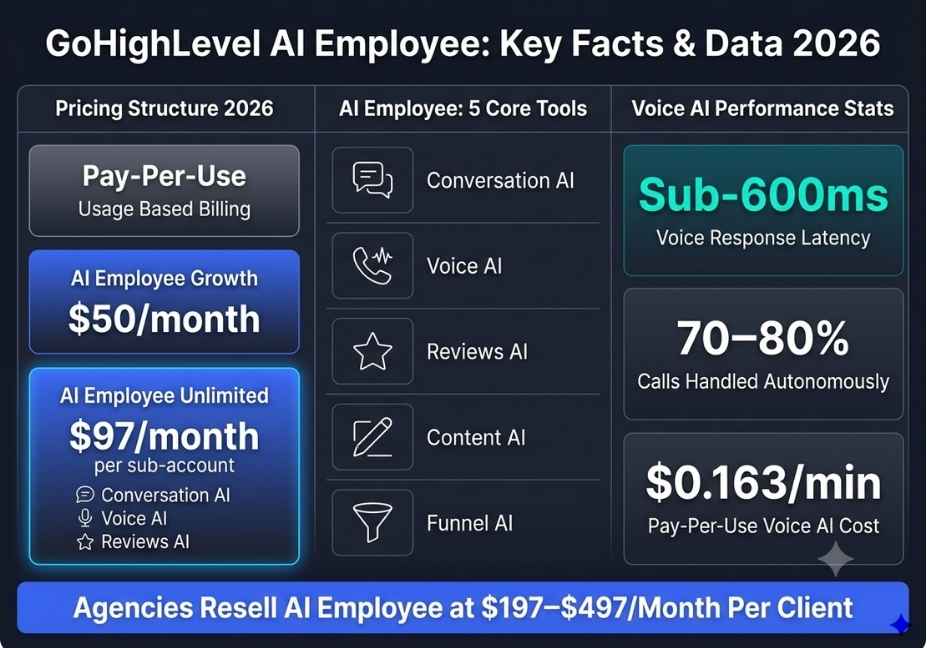
The GoHighLevel AI Employee is a suite of five native AI tools built directly into the HighLevel CRM platform. Specifically, it includes Conversation AI for text-based messaging, Voice AI for inbound and outbound phone calls, Reviews AI for automated reputation management, Content AI for writing assistance, and Funnel AI for landing page generation.
Importantly, none of these tools require third-party integrations. Because the AI Employee lives inside your CRM, it has direct access to your contacts, pipeline stages, calendar availability, and workflow triggers from day one. This native integration is what separates it from duct-taped chatbot solutions built on top of your CRM.
At a technical level, Conversation AI and Voice AI are both prompt-conditioned large language model agents. Consequently, the training data you provide functions as their retrieval context similar in principle to a lightweight retrieval-augmented generation pipeline. The quality of that knowledge base, therefore, determines almost everything about output accuracy in production.
GoHighLevel AI Employee Pricing in 2026
Before you configure anything, you need to understand the current pricing structure. As of February 2026, GoHighLevel offers three tiers for the AI Employee.
The pay-per-use tier bills per message or per minute and works well for low-volume sub-accounts. The AI Employee Growth plan costs $50 per month and covers entry-level unlimited access. The AI Employee Unlimited plan costs $97 per month per sub-account and covers unlimited Conversation AI, Reviews AI, Content AI, Funnel AI, and GHL’s native Voice AI model.
However, two costs are always billed separately. First, Voice AI minutes using external voice providers such as ElevenLabs typically add $0.05 to $0.15 per minute. Second, carrier charges through LC Phone or Twilio generally run $20 to $50 per month per sub-account depending on call volume.
For agencies running in SaaS Mode, the standard resell price runs between $197 and $497 per month per client. Furthermore, agencies that position the AI Employee as a “digital staff member” rather than a software feature report significantly higher close rates. The framing matters as much as the feature set.
Step-by-Step: Go High Level AI Employee Setup
Here is the exact process for setting up the GoHighLevel AI Employee from scratch. Follow these steps in order, because skipping the agency-level activation will prevent sub-account configuration from working.
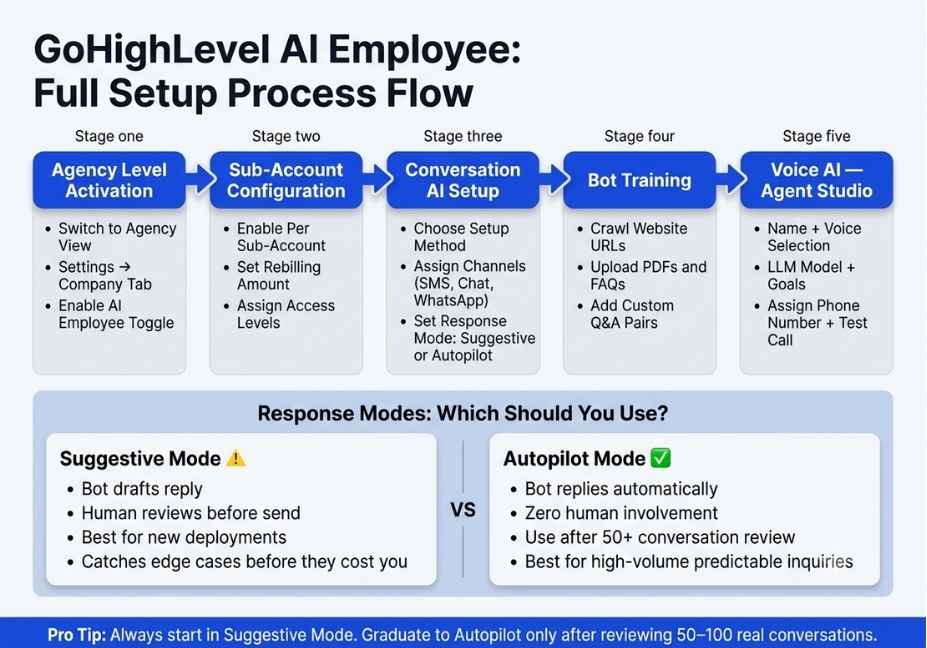
Step one : is enabling the AI Employee at the agency level. First, log in to your GoHighLevel account. Then, click the agency switcher at the top left of the sidebar. Next, select Switch to Agency View. After that, navigate to Settings and click on the Company tab. Finally, scroll down until you see the AI Employee section and toggle it on. This step activates the feature for your entire agency, but it does not automatically enable it for any sub-accounts.
Step two : is activating it for each sub-account. From Agency Settings, open the AI Employee tab. You will see a full list of sub-accounts, each with its own toggle. Enable AI Employee for every sub-account that needs it. At this stage, you can also set custom rebilling amounts. However, check the product-specific pricing page first, because some AI features moved to free access in early 2026 and no longer count toward AI Employee billing.
Step three : is configuring Conversation AI inside each sub-account. Navigate to AI Agents, then select Conversation AI. This is where you create and manage all text-based AI agents. GHL currently offers three creation methods: Guided Form Setup for straightforward use cases, Prompt-Based Setup for custom system prompt control, and Flow Based Builder for complex multi-branch conversation logic. For most clients, Guided Form Setup is the right starting point. It handles lead capture, FAQ responses, and appointment booking without requiring you to write a single prompt from scratch.
Step four : is choosing your response mode. Suggestive Mode has the bot draft a reply that a human reviews before sending. Autopilot Mode sends the bot’s reply automatically without any human involvement. Start every new deployment in Suggestive Mode. Review at least 50 to 100 real conversations before moving any conversation type to Autopilot. This step alone prevents the most common production mistakes.
Step five : is assigning channels. You can activate Conversation AI selectively per channel. Start with website chat and SMS. Then expand to Instagram DMs, WhatsApp, Facebook Messenger, and Google My Business only after you have confirmed response accuracy on the initial channels.
How to Train Your GoHighLevel Conversation AI Bot
Bot training is the single most important step in the entire go high level AI employee setup process. Because the AI Employee uses a large language model, it generates responses based entirely on the context it has been trained on. Therefore, a thin knowledge base produces vague or incorrect answers, even if the rest of your configuration is perfect.
GHL’s bot training system supports several input types. You can crawl your website by providing exact URLs, path-based URLs, or your full domain up to 4,000 URLs per knowledge base. You can also upload PDF documents such as service menus and pricing sheets. Additionally, you can connect Google Docs as training sources, though you must first set the document to “Anyone with link” visibility, otherwise the crawler returns an error. Finally, you can define Custom Bot Responses manually written question-and-answer pairs for your most critical FAQs.
Here are the four training rules that determine whether your bot performs or hallucinates in production.
First, always include explicit pricing. Vague pricing pages are the leading cause of hallucinated answers. The LLM will generalize from surrounding context and invent numbers when none are grounded in the training data. Either include actual prices or instruct the bot explicitly to redirect all pricing questions to a human.
Second, write business hours as plain text inside the training data. The bot reads text content, not metadata or structured fields. If hours only exist in a schema tag or a Google Business Profile, the bot cannot access them.
Third, define what your business does not offer. Scoping limitations prevent the bot from confidently confirming services that do not exist. Without these, the LLM will often say yes to requests it cannot fulfill.
Fourth, use the thumbs-up and thumbs-down feedback system during live conversations. This reinforces accurate responses and flags incorrect ones for manual correction. Moreover, update your training data quarterly or after any pricing or service change, because GHL does not auto-recrawl your sources.
How to Set Up GoHighLevel Voice AI in Agent Studio
Voice AI is the most powerful and most technically involved component of the AI Employee. Therefore, it deserves its own setup process. Configuration happens inside Agent Studio, which received a significant UX update in early 2026 with improved training data import and cleaner conversation flow visualization.
To create a Voice AI agent, navigate to Voice AI and select Create Agent. The key configuration fields are as follows. The Agent Name and Business Name appear in the greeting message, so make them match your client’s brand. Voice selection lets you preview available voices before committing ElevenLabs voices sound considerably more natural but add per-minute cost. The LLM model selection offers tradeoffs between response latency and output quality. The Greeting Message controls exactly what the agent says when it picks up an inbound or outbound call.
For goal configuration, Basic Mode covers standard appointment booking and FAQ handling. Advanced Mode lets you write custom goal instructions, which function essentially as a structured system prompt defining the agent’s conversation objective, qualification questions, and escalation logic.
After configuration, you must assign a phone number. Each Voice AI agent connects to one or more LC Phone or Twilio numbers in your sub-account. When that number receives an inbound call, the agent handles it automatically. You can also configure working hours so the agent only activates during defined time windows.
Always run a test call before going live. GHL’s test call panel is built into the Create Agent flow, so you do not need to leave the setup screen. During the test, review the live transcript, check for misidentified services or invented pricing, and refine your training data accordingly before the number goes public.
Long-Tail Keyword Coverage: Specific Scenarios Agencies Ask About
How do you set up GoHighLevel AI Employee for a local service business? The process is identical to the steps above, but the knowledge base needs to include local-specific context service areas, local competitor differentiators, and hyper-specific FAQs that generic websites rarely address. As a result, the bot sounds local rather than generic, which improves lead conversion significantly.
How do you configure GoHighLevel Conversation AI autopilot mode safely? The answer is to start in Suggestive Mode, review at least 50 real conversations, identify the most common inquiry types, and then move only those specific conversation types to Autopilot. Consequently, you maintain human oversight on edge cases while automating the predictable majority.
How do you use GoHighLevel Voice AI Agent Studio for appointment booking? After creating your agent and configuring its goals in Basic Mode, connect your GHL calendar, set available booking hours, define buffer times between appointments, and specify your maximum daily bookings. The Voice AI agent will only offer genuinely open time slots, preventing double-bookings entirely.
What is the best GoHighLevel AI Employee setup for agencies selling white-label AI? Enable the AI Employee at the agency level, configure per sub-account access from the AI Employee tab, set your resell price in the rebilling settings, and present the tool to clients as a dedicated AI receptionist or AI sales assistant not as a software feature. This approach increases perceived value and therefore supports premium pricing.
Common Setup Mistakes and How to Avoid Them
Even experienced agencies make these mistakes. Here is what goes wrong and how to fix each one.
The first mistake is activating Autopilot Mode immediately. Because the bot has not yet encountered real edge cases, it will generate confident but incorrect answers on topics your training data did not cover fully. Always start in Suggestive Mode and graduate to Autopilot after review.
The second mistake is building a thin knowledge base. A three-page website crawl is insufficient for any service business with multiple offerings. As a result, the bot invents details to fill gaps. Feed it PDFs, explicit FAQ documents, pricing lists, and manual Q&A pairs before launch.
The third mistake is skipping escalation workflows. Every Conversation AI deployment needs a human handoff trigger. For example, you can set a message count limit so that after eight bot responses, the system notifies a human team member. Alternatively, you can configure keyword triggers such as “speak to a person,” “billing issue,” or “urgent” that pause the bot and alert your team. Build this in Workflows before the first live conversation.
The fourth mistake is ignoring the difference between Conversation AI and Workflow AI. Conversation AI handles customer-facing messaging. Workflow AI, on the other hand, helps agency users build and troubleshoot internal automations inside the workflow builder. These are completely separate systems. Furthermore, if you use external AI models like OpenAI integrations inside Workflow AI, you must enable the History setting in the action configuration. Otherwise, the AI action loses context between workflow steps.
The fifth mistake is forgetting to test Voice AI before going live. A bot that mispronounces your client’s business name or quotes wrong prices on the first real call damages trust immediately. Therefore, run at least three test calls across different inbound scenarios before assigning the number publicly.
GoHighLevel AI Employee Use Cases by Industry
The setup process stays the same regardless of industry. However, the knowledge base content and bot goal configuration change significantly based on context. Here are four industries where the AI Employee delivers measurable results quickly.
Legal firms use the AI Employee for intake and consultation booking. The agent handles case type identification, urgency triage, and appointment scheduling. Moreover, it operates 24/7, which means it captures leads who search at midnight instead of waiting two days for someone to return a callback form submission.
Home services businesses including HVAC, plumbing, and roofing companies use it to respond to service requests, book estimate appointments, and follow up on unconverted quotes. Because inbound phone volume spikes during peak season, the AI Employee captures demand that would otherwise go to a competitor.
Health and wellness businesses use the AI Employee to book appointments, send pre-visit instructions, and re-engage clients who have not visited in 60 days or more. Furthermore, Reviews AI automatically requests and responds to Google reviews, which builds the local reputation that drives organic bookings.
Real estate agencies use it to qualify buyer and seller inquiries, route hot leads to agents, and manage cold inquiries through automated nurture sequences. As a result, agents focus exclusively on active relationships rather than fielding cold inbound calls.
In most deployments, Voice AI handles between 70 and 80 percent of inbound calls autonomously. The remaining 20 percent typically complex pricing negotiations, complaints, or unusual requests route to a human. This is the intended design: automate the predictable majority and preserve human judgment for the exceptions.
FAQ People Also Ask
What is the GoHighLevel AI Employee?
The GoHighLevel AI Employee is a suite of five AI tools Conversation AI, Voice AI, Reviews AI, Content AI, and Funnel AI built natively into the HighLevel CRM. Together, they automate front-office communications including inbound calls, lead chat, review management, and content creation. Because the tools are native to the CRM, the AI has direct access to contacts, pipelines, calendars, and workflow triggers without any third-party integration.
How do I enable the AI Employee in GoHighLevel?
Switch to Agency View, navigate to Settings then Company, scroll to the AI Employee section, and toggle it on. After that, open the AI Employee tab in Agency Settings and activate it individually for each sub-account. You can also configure custom rebilling amounts per sub-account from that same view.
How do I train the GoHighLevel Conversation AI bot?
Navigate to AI Agents, then Conversation AI, open your bot’s configuration, and go to the Training section. Add your website URL for GHL to crawl, upload PDFs or service menus, connect a Google Doc set to public link visibility, and manually enter Q&A pairs for critical FAQs. Additionally, update training data quarterly or after any service or pricing change.
Does GoHighLevel AI Employee work on WhatsApp and SMS?
Yes. Conversation AI handles conversations across SMS, web chat, Instagram DMs, WhatsApp, Facebook Messenger, and Google My Business. You can enable it selectively per channel. Therefore, it is practical to start with SMS and web chat, then expand to additional channels after validating response quality.
What is the difference between Conversation AI and Workflow AI in GoHighLevel?
Conversation AI is the customer-facing agent that handles inbound messages, qualifies leads, and books appointments. Workflow AI, by contrast, is an internal tool that helps agency users build, understand, and troubleshoot automations inside the GoHighLevel workflow builder. They serve entirely different functions and operate in separate areas of the platform.
How much does the GoHighLevel AI Employee cost in 2026?
The AI Employee Unlimited plan costs $97 per month per sub-account as of February 2026. This covers unlimited Conversation AI, Reviews AI, Content AI, and Funnel AI using GHL’s native voice model. However, Voice AI minutes using external voice providers and carrier charges through LC Phone or Twilio are billed separately. Most agencies resell the suite to clients at $197 to $497 per month.
Conclusion
The go high level AI employee setup process has three layers that most guides collapse into one. The first is agency-level enablement. The second is sub-account configuration. The third and most important is the knowledge base, goal structure, and escalation logic that determines whether the agent actually performs in production.
Get the first two right and the bot technically runs. Get the third right and it books appointments, qualifies leads, and manages reputation automatically while your team focuses on closing deals.
Therefore, the practical takeaway is this: treat bot training as seriously as you treat the toggle. Because an LLM with a thin retrieval context will hallucinate, a bot launched in Autopilot without escalation logic will lose your best leads, and a Voice AI agent that has not been test-called will embarrass your client on day one.
For more on deploying LLM-powered agentic systems including multi-agent orchestration, retrieval-augmented generation pipelines, and real-world agentic workflow design explore the full library at agentiveaiagents.com.
Technical Disclaimer: GHL’s AI Employee suite evolves rapidly. Feature availability, pricing tiers, and UI paths described here reflect the platform as of June 2026. Always verify current configuration steps against HighLevel’s official documentation before deployment.