
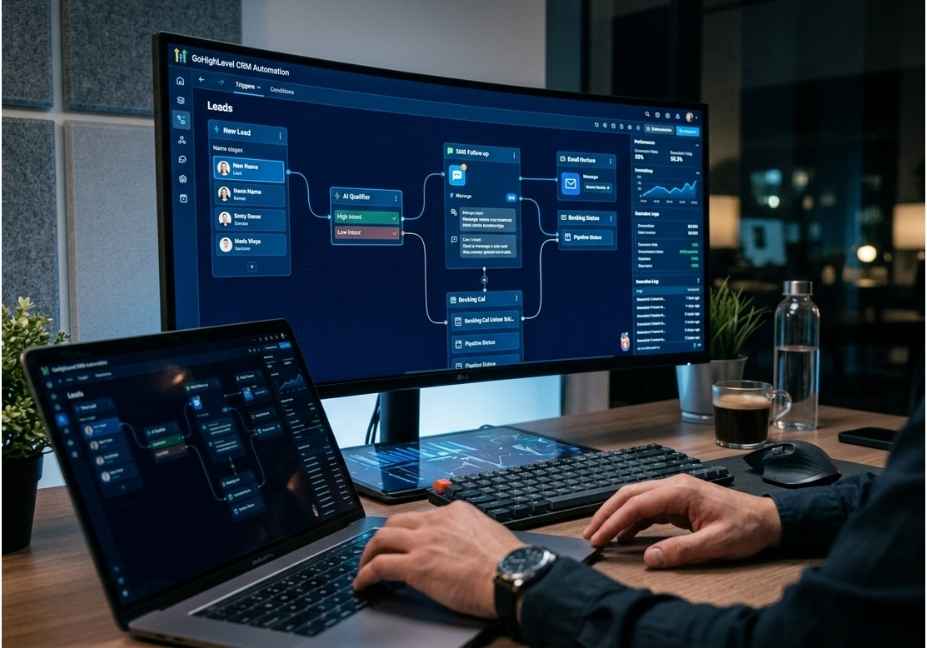
Many GoHighLevel agencies are missing out on a lot of money due to human error when it comes to follow-ups. Not that they do not have enough leads, but because of how they handle those leads.
This is where the GoHighLevel automation platform comes into play by helping you automate qualification, booking and following up with leads through AI without writing any code!
With agencies that use GoHighLevel Voice AI in 2026 reporting 30%-40% more bookings from identical inbound call volume, it does not come from just turning on the feature; you need to set the system up correctly. This is what this tutorial will help you with.
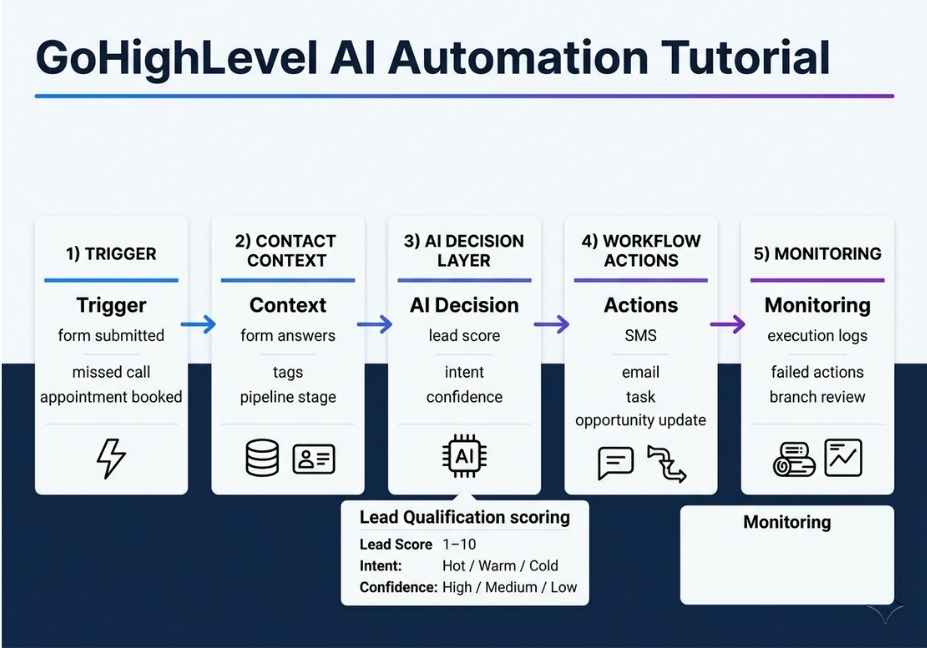
The tutorial will walk you through all levels of the complete GoHighLevel AI automation stack Workflow Builder AI, Conversation AI and Voice AI. For each level, you will see how each level functions at an architectural level, how to properly configure, and where and why it does not function correctly.
Important Technical Notes: All pricing and behavioral features listed in this article pertain to GoHighLevel in June of 2026. Because GHL’s AI tools are being developed regularly, please verify the current situations from the official HighLevel support portal prior to deploying anything into production.
What Is GoHighLevel AI Automation?
GoHighLevel AI automation is a system-wide orchestration layer embedded across the platform’s CRM, communication channels, and workflow builder. Therefore, instead of connecting an external LLM to a separate CRM, every AI feature inside GHL shares the same contact data, pipeline state, and calendar context by design.
Specifically, three of GHL’s eight native AI features directly replace paid human labor on revenue-generating tasks: Conversation AI, Voice AI, and Workflow AI. The remaining five Content AI, Reviews AI, Funnel AI, Image AI, and Social Planner AI generate assets faster, but they do not change your conversion math.
Consequently, the most effective way to think about these three tools is as cooperating autonomous agents, each with a specific channel responsibility. Workflow AI acts as the planner. Conversation AI handles text-channel interactions. Voice AI closes the loop on inbound and outbound phone calls. Together, they form a multi-agent system that qualifies leads, books appointments, tags contacts, and escalates to humans all based on configurable intent-detection rules.
Why does this architecture matter for your agency?
Because when you understand how the layers connect, you configure them in the right sequence. Most agencies activate these features in isolation and wonder why results are poor. However, the system is designed to work as a stack and this tutorial treats it as one.
How Does GoHighLevel Workflow AI Builder Work?
GoHighLevel’s Workflow AI Builder converts a natural-language prompt into a complete automation triggers, actions, wait steps, and IF/ELSE branches streamed in real time with a step-by-step progress view.
Three ways to access it:
First, navigate to Automation → Workflows and click “Build Using AI” to open a modal prompt window. Second, start a new workflow from scratch and use the AI prompt box that appears in the builder. Third, use the AI chatbot assistant panel in the bottom-left corner of the workflow builder for conversational editing of an existing workflow.
The third access point is the most powerful for iteration. Because it supports conversational editing, you can describe changes in plain English and the builder updates the existing structure without a full rebuild. For example, you can say “add a 24-hour wait before the SMS” or “add an IF branch for contacts tagged as VIP” and it adjusts the surrounding logic while keeping the rest intact.
How to write Workflow AI prompts that actually work
Weak prompts produce generic skeletons. Precise prompts produce deployable workflows. The difference comes down to four elements: timing, channel, condition, and content type.
Here is a side-by-side comparison:
Weak prompt: “Follow up with new leads.”
Strong prompt: “When a contact submits the intake form, send a confirmation SMS within 30 seconds. Wait 15 minutes. If no reply, send an email. Wait one hour. If still no reply, create a task for manual follow-up.”
Weak prompt: “Remind people about their appointments.”
Strong prompt: “When an appointment is booked, send a confirmation email immediately. Send an SMS reminder 24 hours before the appointment. Send a final SMS two hours before. If the appointment status changes to no-show, trigger the reschedule workflow.”
As a result, the strong version gives the AI enough context to wire the correct triggers, set the right wait durations, and choose the appropriate channels without you manually correcting the output afterward.
Pro Tip: After generation, always click Test Workflow before publishing. AI builds the structure, but you still need to verify that message templates are populated, trigger conditions are correct, and IF/ELSE branch logic matches your actual qualification criteria.
Important note on cost: Workflow AI Builder no longer consumes AI credits as of June 2026. You can use it freely at all GHL plan levels. A fair-use daily limit applies, but access resets every 24 hours if reached.
What Is the GoHighLevel AI Agent Action and How Does It Work?
The AI Agent action is a single workflow step that replaces what previously required 8 to 15 manual actions. Instead of chaining IF/ELSE branches, wait steps, and individual message actions, you add one AI Agent action with a customized prompt template and the LLM decides what to do based on the incoming contact data and conversation context.
Step-by-step setup:
Step 1. Navigate to Automation → Workflows and open or create a workflow.
Step 2. Click “Add Action” and search for “AI Agent” in the action library.
Step 3. Select a pre-built prompt template or write a custom prompt.
Step 4. Configure placeholder values your business name, offer description, booking rules, and escalation conditions.
Step 5. Select your preferred AI model from the dropdown.
Step 6. Save the action, then click “Test Workflow” and run at least five test executions before publishing.
Which triggers work with the AI Agent action?
Any standard GHL workflow trigger is compatible. This includes form submissions, appointment status changes such as no-shows and completions, Instagram DMs and comments, Facebook Lead Ads, pipeline stage changes, and contact creation events. Because the trigger compatibility is broad, you can deploy the same AI Agent prompt logic across every major inbound channel without rebuilding your decision architecture for each one.
How much does it cost?
The AI Agent action is billed per execution on top of your base GHL plan. Real-world usage reports costs as low as two cents per full workflow run, including SMS and email actions. However, exact cost depends on the AI model selected, your token usage per run, and any outbound messaging fees.
Pro Tip: Start with your single highest-volume trigger typically form submissions or appointment no-shows. Customize the prompt template for that trigger first. Run ten test executions, measure output quality against expected responses, and refine before scaling to additional triggers. Because prompt sensitivity is high, a two-hour investment here consistently separates high-converting deployments from ones that produce off-brand responses.
How to Set Up GoHighLevel Conversation AI for a Service Business
Conversation AI is GHL’s text-channel agent. It handles incoming messages across SMS, live chat, Facebook Messenger, Instagram DMs, and WhatsApp. Furthermore, unlike a rule-based chatbot that routes users through pre-scripted decision trees, Conversation AI uses intent detection to interpret meaning rather than keywords which allows it to handle novel phrasing and maintain multi-turn context within a conversation.
Why knowledge base training is the step most agencies skip
The single most common cause of poor Conversation AI performance is activating the bot with an empty or superficial knowledge base. Because the model has no business context, it produces vague or incorrect answers to specific product, pricing, and availability questions and that destroys lead trust faster than a slow response time.
Before activating Conversation AI, document the following:
Your top 20 real customer questions, written exactly as customers phrase them. Your offer in plain language, including what is included, what is excluded, and what the price range is. Your booking rules availability windows, service areas, and any prerequisites. Five objection-handling examples, written as complete exchanges rather than single answers.
Feed this into the AI training section via website URL crawl, PDF upload, or manual Q&A pairs. According to GoHighLevel’s 2026 Conversation AI documentation, you can use all three input methods simultaneously and combining them produces the most accurate knowledge base.
How to set up human handoff correctly
Two escalation mechanisms exist. First, set a bot response limit after a configured number of messages, the bot pauses automatically and sends an internal notification to your team. Second, build an escalation workflow that detects negative sentiment or specific phrases like “talk to a person” and fires an alert while pausing the AI agent.
Build at least one of these paths before going live. Otherwise, a lead who needs human confirmation before committing to a high-ticket service will feel trapped and they will leave.
Language support and channel-level control
As of 2026, GoHighLevel Conversation AI includes auto-language detection across more than 50 languages. If a lead messages in Spanish or French, the AI detects it and responds in kind using the same English-language knowledge base as the source. This means you can serve multilingual markets without building separate knowledge bases for each language.
Additionally, you have granular channel-level control. You can enable Conversation AI on Website Live Chat and Google Business Messages while keeping Instagram DMs manual which is useful for staged rollouts where you want to measure bot performance on one channel before committing account-wide.
How to Set Up GoHighLevel Voice AI: Architecture and Step-by-Step Guide
GoHighLevel Voice AI is the platform’s autonomous phone agent. To understand why it performs the way it does in 2026, it helps to understand the three-stage pipeline it runs on.
The STT to LLM to TTS pipeline explained
Stage one is Speech-to-Text. When a caller speaks, their voice is transcribed in real time by the STT layer. Stage two is LLM Processing. The transcript is fed into GPT-5 Mini the model underlying GHL Voice AI as of the 2026 update which generates a contextually appropriate response based on your configured prompts and knowledge base. Stage three is Text-to-Speech. The response is converted to high-fidelity voice using ElevenLabs-quality synthesis and played back to the caller.
The entire cycle completes in under 600 milliseconds on GHL’s native platform. Because that latency is fast enough for natural conversation, callers can interrupt mid-sentence and the agent adjusts a capability that was absent from earlier Voice AI versions.
Step-by-step Voice AI setup
Step 1. Navigate to AI Agents → Voice AI → click “+ Create Agent.”
Step 2. In the Agent Details tab, name your agent, select a voice that matches your brand tone, and write your opening greeting prompt.
Step 3. In the Agent Goals tab, define your qualification questions, booking logic, and escalation conditions including the fallback response for unanswerable questions.
Step 4. In the Phone & Availability tab, assign an existing GHL or Twilio phone number and set your business hours so the agent activates correctly after hours.
Step 5. Click “Call Me” to receive a live test call. Interact with the agent as a real caller would.
Step 6. Review the call transcript, recording, and summary. Refine your prompt based on what the agent got wrong. Repeat until performance is consistent across at least five test scenarios.
Step 7. Publish and monitor call analytics weekly for the first month.
Conversation structure template for a service business
Use this as a starting point and customize the qualification questions to match your industry:
Greeting: “Hi, thanks for calling [Business Name]. How can I help you today?”
Identify intent: “Are you looking to schedule an appointment, or do you have a question about our services?”
Qualification question one: “What type of service are you looking for?”
Qualification question two: “When were you hoping to get this done?”
Booking: “I have availability on [date] at [time]. Does that work for you?”
Confirmation: “You are all set. You will receive a confirmation text shortly.”
Fallback: “That is a great question let me have a team member follow up with you on that specifically.”
Important note on pricing
Voice AI requires the AI Employee add-on. The AI Employee Unlimited plan costs $97 per month per sub-account and covers inbound Voice AI plus all Conversation AI features at unlimited usage. For lower tiers, pay-per-minute billing applies at approximately $0.07 to $0.20 per minute depending on call direction.
Pro Tip: Assign Voice AI to a single Twilio number for a 14-day pilot. Measure your AI transfer rate against your human baseline before rolling out account-wide. Because the knowledge base quality drives performance more than the model itself, a well-trained agent on a pilot number outperforms a poorly trained agent deployed everywhere.
Common GoHighLevel AI Automation Mistakes and How to Fix Them
Even experienced GHL practitioners make these errors. Therefore, reviewing them before your first deployment saves significant debugging time.
Mistake one: Activating without a populated knowledge base
Turning on Conversation AI or Voice AI with an empty knowledge base is the most common failure mode. As a result, the model produces vague or hallucinated answers because it has no business context. Fix: document your top 20 Q&A pairs and complete the training steps in this tutorial before touching thec.
Mistake two: Building overly complex single workflows
A workflow with 47 steps is extremely difficult to debug because every additional action increases the number of potential failure points. Instead, keep individual workflows to five actions maximum. When complexity grows, chain purpose-specific workflows via triggers. Because each workflow has a single clear function, you can isolate and fix failures in minutes rather than hours.
Mistake three: Skipping the analytics review
GHL’s workflow analytics show exactly where contacts drop off and which branches they take. Similarly, Voice AI call analytics identify where agents fail and which questions fall outside the knowledge base. Consequently, reviewing these reports weekly for the first month is not optional it is where you find the specific gaps that cost you conversions.
Mistake four: Deploying without a human handoff path
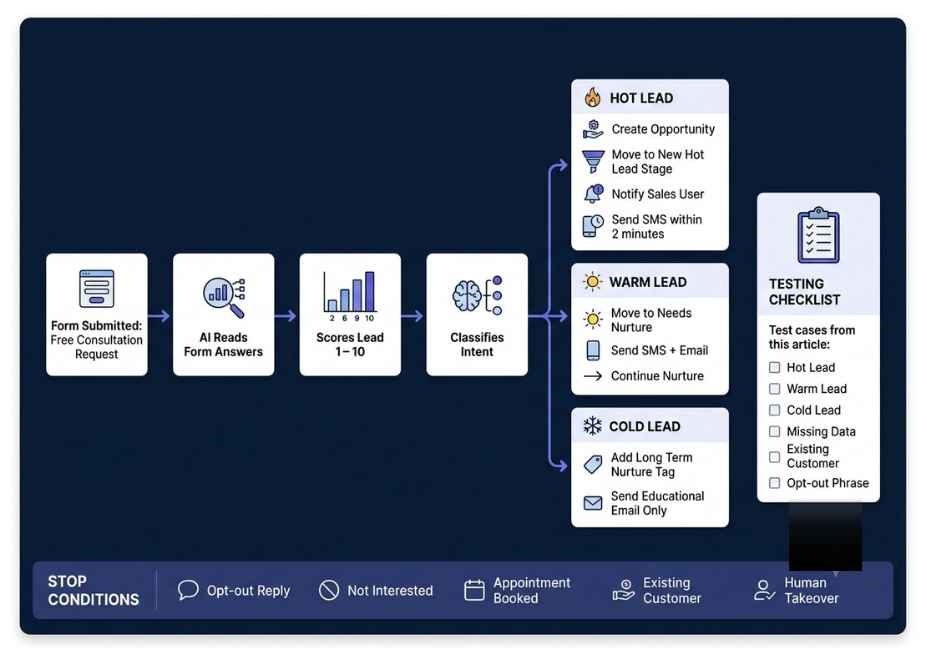
Conversation AI and Voice AI handle volume well. However, high-value leads often want human confirmation before committing to a purchase. An escalation workflow costs nothing to configure, and it prevents the trust damage that comes from a lead feeling trapped in an automated system.
Mistake five: Underestimating per-execution costs at scale
The AI Agent action is billed per execution above your base plan. Therefore, set monthly credit caps in Agency Settings → Billing → Limits before deploying to high-volume triggers. Because costs are low per run, they scale with volume and an unmonitored high-volume trigger can produce unexpected charges on month two.
FAQ People Also Ask
What is GoHighLevel Workflow AI and how does it work?
GoHighLevel Workflow AI Builder is a natural-language automation generator built directly into the GHL workflow editor. It works by converting a plain-language prompt including timing, channel, conditions, and content instructions into a complete automation with triggers, actions, wait steps, and IF/ELSE branches. You then review the generated workflow, test it, and refine it through conversational edits without rebuilding from scratch. Workflow AI Builder is available at all GHL plan levels and does not consume AI credits as of June 2026.
How does GoHighLevel Conversation AI differ from a basic chatbot?
A basic chatbot routes users through pre-scripted decision trees using keyword matching. GoHighLevel Conversation AI uses a large language model with a trained knowledge base, which means it interprets meaning rather than keywords. Because of this, it handles novel phrasing, maintains multi-turn context, auto-detects 50-plus languages, and triggers escalation workflows based on sentiment analysis. None of these capabilities are available in a rule-based chatbot system.
Can GoHighLevel Voice AI replace a human receptionist?
For structured, high-volume tasks specifically answering FAQs, qualifying inbound leads, and booking appointments GoHighLevel Voice AI functions as a working receptionist replacement. With GPT-5 Mini and sub-600ms latency as of the 2026 update, most callers cannot identify the voice as AI during a structured conversation. However, it is not a replacement for complex, emotionally charged, or high-value consultative conversations. The recommended deployment pattern is Voice AI for inbound volume and after-hours coverage, with escalation workflows routing high-intent leads to human agents.
What triggers work with the GoHighLevel AI Agent action?
Any standard GHL workflow trigger is compatible with the AI Agent action. This includes form submissions, appointment status changes such as no-shows and completions, Instagram DMs and comments, Facebook Lead Ads, pipeline stage changes, and contact-created events. Because trigger compatibility is broad, you can reuse the same AI Agent prompt template across multiple inbound channels customizing placeholder values per channel rather than rebuilding your logic from scratch.
How do I avoid hallucinations in GoHighLevel AI responses?
Populate your knowledge base with at least 20 specific Q&A pairs before activating any AI feature. In your system prompt, explicitly limit agent scope instruct the agent to answer only questions about your specific service area and business type, and to route anything outside that scope to a human follow-up task. Additionally, set a bot response limit as a structural fallback. Because prompt specificity drives accuracy more than model selection, review call transcripts and chat logs weekly during the first month and correct recurring failures in the knowledge base immediately.
How much does GoHighLevel AI automation cost in 2026?
Workflow AI Builder is free at all paid GHL plan levels. The AI Agent action is billed per execution at approximately two cents per run for most use cases. Conversation AI and Voice AI require the AI Employee add-on the Unlimited tier costs $97 per month per sub-account and covers both features at unlimited usage. Pay-per-minute Voice AI billing applies on lower tiers at $0.07 to $0.20 per minute. Through August 2026, GoHighLevel is offering a 30-day free trial of Conversation AI and Voice AI for sub-accounts that have not previously activated these features.
Conclusion
GoHighLevel AI automation in 2026 is not a single feature it is a three-layer multi-agent system that replaces the manual follow-up, qualification, and booking work that used to require dedicated human time. Because Workflow AI Builder, Conversation AI, and Voice AI share the same CRM data context, they cooperate in ways that isolated external tools cannot replicate.
The three most important takeaways from this tutorial are these. First, train before you activate. A populated knowledge base is the difference between an AI agent that converts and one that frustrates leads. Second, build your escalation workflow before you go live. Every AI deployment needs a reliable human handoff path. Third, review your analytics weekly for the first month. The specific failures that cost you conversions are visible in the data and they are fixable.
Agencies that follow this sequence consistently report stronger booking rates and lower per-acquisition costs than those who simply switch features on. Therefore, bookmark this guide, apply the step-by-step setup for each layer in order, and explore more hands-on AI agent tutorials at agentiveaiagents.com.